
Settings
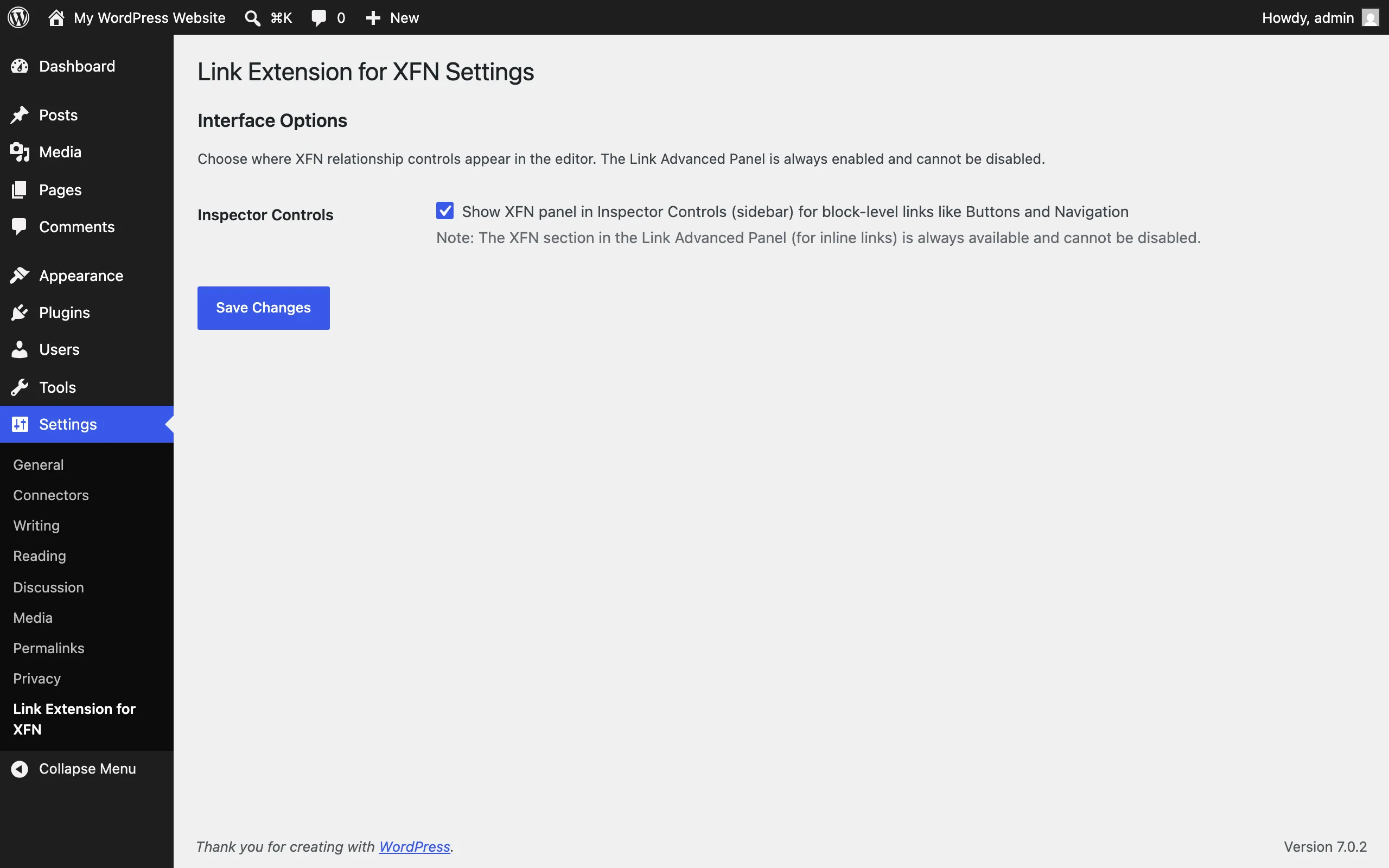
Configure where XFN relationship controls appear in the block editor. There’s one settings page with two checkboxes; the inline-link interface is always on.
Accessing the settings
Section titled “Accessing the settings”- Log in to wp-admin.
- Go to Settings → Link Extension for XFN.
The page requires the manage_options capability (administrators). Settings apply site-wide for all users. After saving, refresh any open editor windows to see the change.
The two interfaces at a glance
Section titled “The two interfaces at a glance”| Interface | Setting | Default | Works on |
|---|---|---|---|
| Link Advanced panel | none — always on | always on | inline text links (Paragraph, Heading, List, and other text blocks) |
| Inspector Controls panel | “Inspector Controls” checkbox | off | block-level links (Button, Image, Navigation Link, Site Logo, Post Title, Query Title, Embed) |
Link Advanced panel (always on)
Section titled “Link Advanced panel (always on)”For links inside text, the plugin adds a collapsible XFN section to the link popover’s Advanced area. It can’t be turned off.
To use it: select linked text, click the link, expand Advanced, then expand XFN. Pick relationships from the category groups (radio groups for choose-one categories, checkboxes for the rest), watch the count badge and “Active Relationships” pills update, then click Apply and save the post.
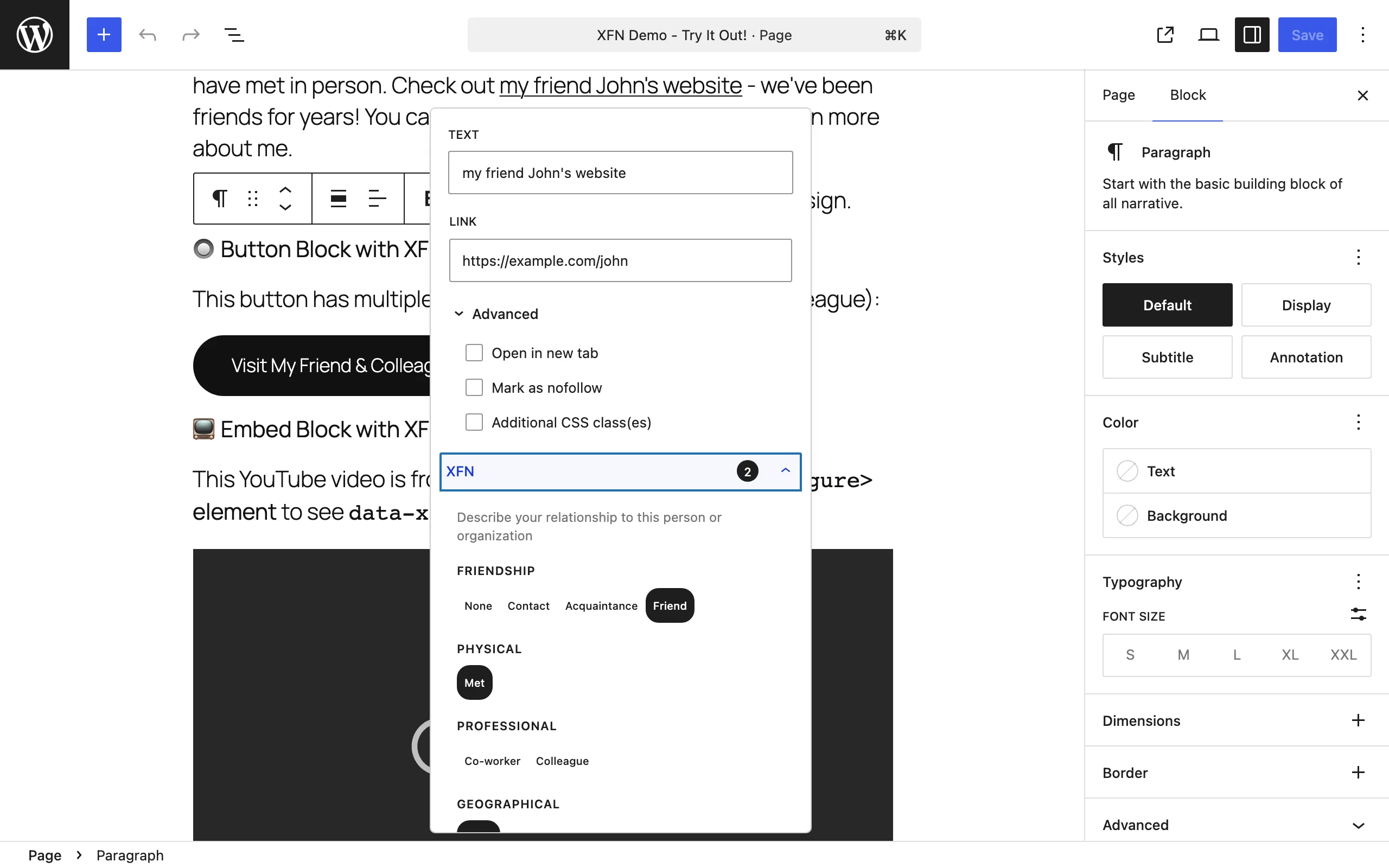
This covers the most common case — links inside paragraphs and other text — which is why it’s always available. See Paragraph links for a full walkthrough.
Inspector Controls
Section titled “Inspector Controls”Setting: Inspector Controls · Default: off (unchecked)
When enabled, an XFN Relationships panel appears in the editor’s right-hand sidebar when you select a block-level link: Button, Image, Navigation Link, Site Logo, Post Title, Query Title, or Embed. The panel opens by default for those blocks and uses radio controls for the choose-one categories (with a “None” option) plus checkboxes for the multi-select ones, with a summary of the selected relationships as pills.
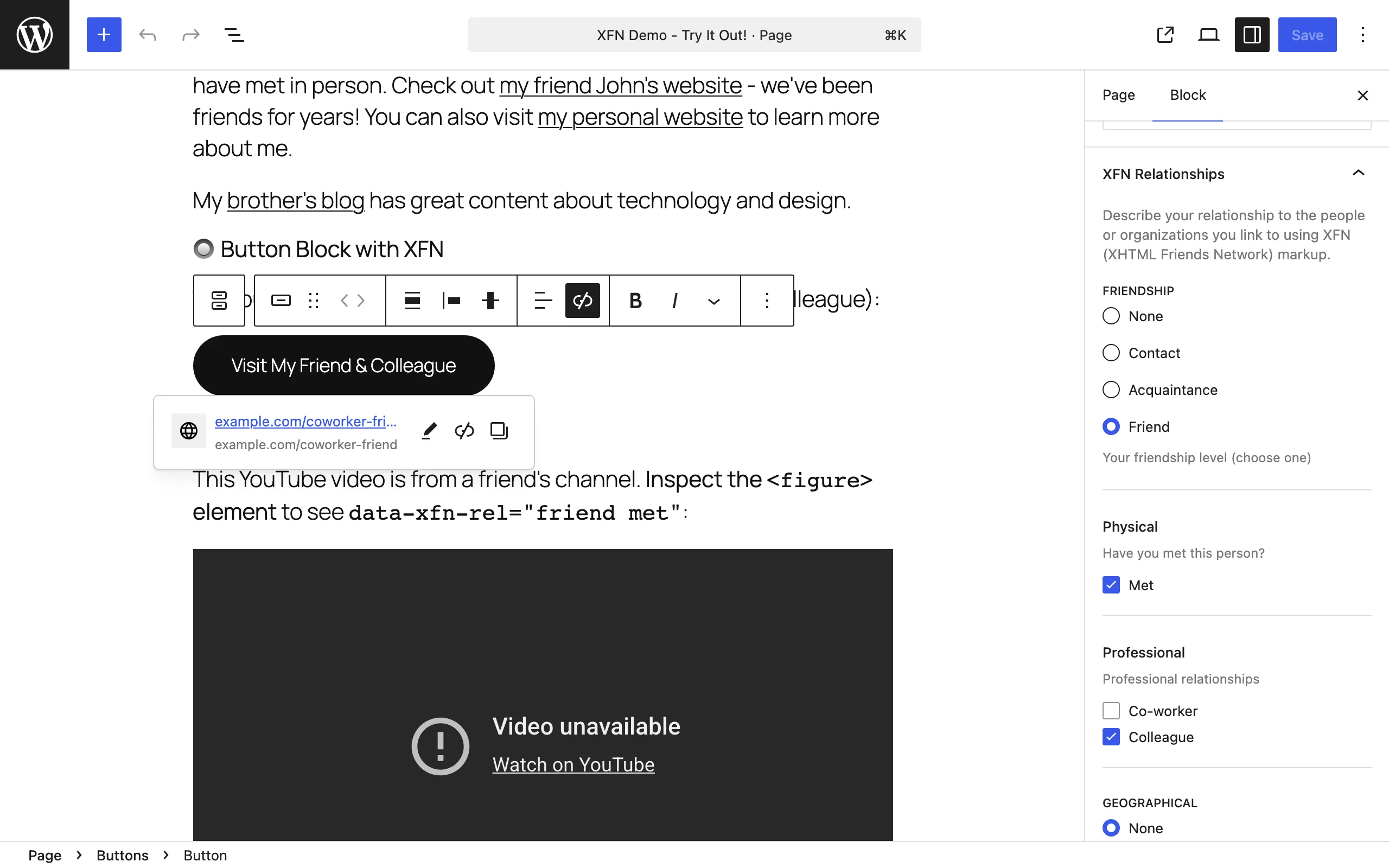
Enable it if you:
- Work with Button blocks, navigation menus, or linked images often.
- Prefer having block settings in the sidebar rather than in popovers.
- Use IndieWeb blocks that expose an event URL (RSVP cards) — the panel also targets blocks with
url,href, oreventUrlattributes.
Leave it off if you mostly tag inline text links; the always-on Advanced panel already covers those. See Button links, Image links, and Other block links.
Recommended setups
Section titled “Recommended setups”Most users: leave Inspector Controls off. The always-on Link Advanced panel handles inline links, which is the most common case.
Site builders and button-heavy sites: enable Inspector Controls. It saves a lot of clicks when you tag Buttons, Navigation Links, and Images regularly.
Upgrading from an earlier version: the “Floating Toolbar Button” checkbox was removed in 1.0.4 — it was advertised but the button it promised was never implemented, so the setting did nothing. No action needed.
Teams: settings are site-wide, so pick one approach, tell your editors where to find the XFN controls, and note the choice in your team docs.
Changing a setting
Section titled “Changing a setting”- Go to Settings → Link Extension for XFN.
- Check or uncheck the option.
- Click Save Changes.
- Refresh any open editor windows.
Troubleshooting settings
Section titled “Troubleshooting settings”I enabled Inspector Controls but don’t see the panel. Confirm you clicked Save Changes and refreshed the editor. The panel only appears for block-level links (select a Button block to test); it never appears for inline paragraph links. It may also be below other panels in the sidebar — scroll down.
I want to turn XFN off entirely. Uncheck Inspector Controls to remove it from block-level links. The Link Advanced panel can’t be disabled while the plugin is active; deactivate the plugin at Plugins to remove it completely. Relationships already saved in your content stay in place (see Privacy and data).
Some editors see the controls, others don’t. Settings are site-wide. Have everyone refresh their editor and clear the browser cache; confirm they can edit posts.
More symptoms are covered in Troubleshooting.
For developers: where settings are stored
Section titled “For developers: where settings are stored”Settings live in the wp_options table under the option name xfn_link_extension_options:
array( 'enable_inspector_controls' => false,)Read them with get_option( 'xfn_link_extension_options' ). The value is sanitized to a boolean on save. Deleting the option resets the setting to its default (off). A leftover enable_floating_toolbar key from earlier versions is ignored.