Settings
Every user-visible Outpost setting, where to find it in wp-admin, and when to change it.
Navigation: everything lives under one Outpost menu in the wp-admin sidebar — the main page (the composer link, bookmarklets, phone-install steps, and the Composer defaults form), then the Settings, Appearance, and OAuth Connections submenus. The one exception is the iOS Shortcut bridge, which sits under WordPress’s own Settings → Outpost iOS Shortcut.
Composer defaults
Section titled “Composer defaults”Location: wp-admin → Outpost (the first Outpost menu), “Settings” section at the bottom of the page. Requires the Administrator-level manage_options capability.
These are site-wide defaults; each user can override them at post time from the composer’s More options panel.
| Setting | What it does | Default |
|---|---|---|
| Default Post variant | Which variant the Post tab opens to on every fresh composer load. Choices: Article (title + body), Note (auto-format from content length), Status, Aside, Quote. | Article |
| Default categories | Checkboxes, one per category. The ticked ones come pre-selected in the composer’s More options on every post, and a post from Outpost that names no category gets them instead of WordPress’s own default (Settings → Writing → Default Post Category). Untick everything to keep WordPress’s default. | None |
| Default tags | Comma-separated tag names, pre-selected in the composer’s More options. A name that doesn’t exist yet is created the first time a post uses it. | None |
| Bridgy auto-suggest | When a Reply or Doing target URL’s host matches a known silo, pre-check the matching Bridgy publish target. Bridgy is a bridge service that syndicates posts to networks like Mastodon and Bluesky. Turn off if you prefer explicit syndication only. | On |
| Auto Post-Format inference | Sets the WordPress post format automatically from the post’s content signals (likes become link format, photos become image or gallery, and so on). Turn off if you prefer manual format selection. | On |
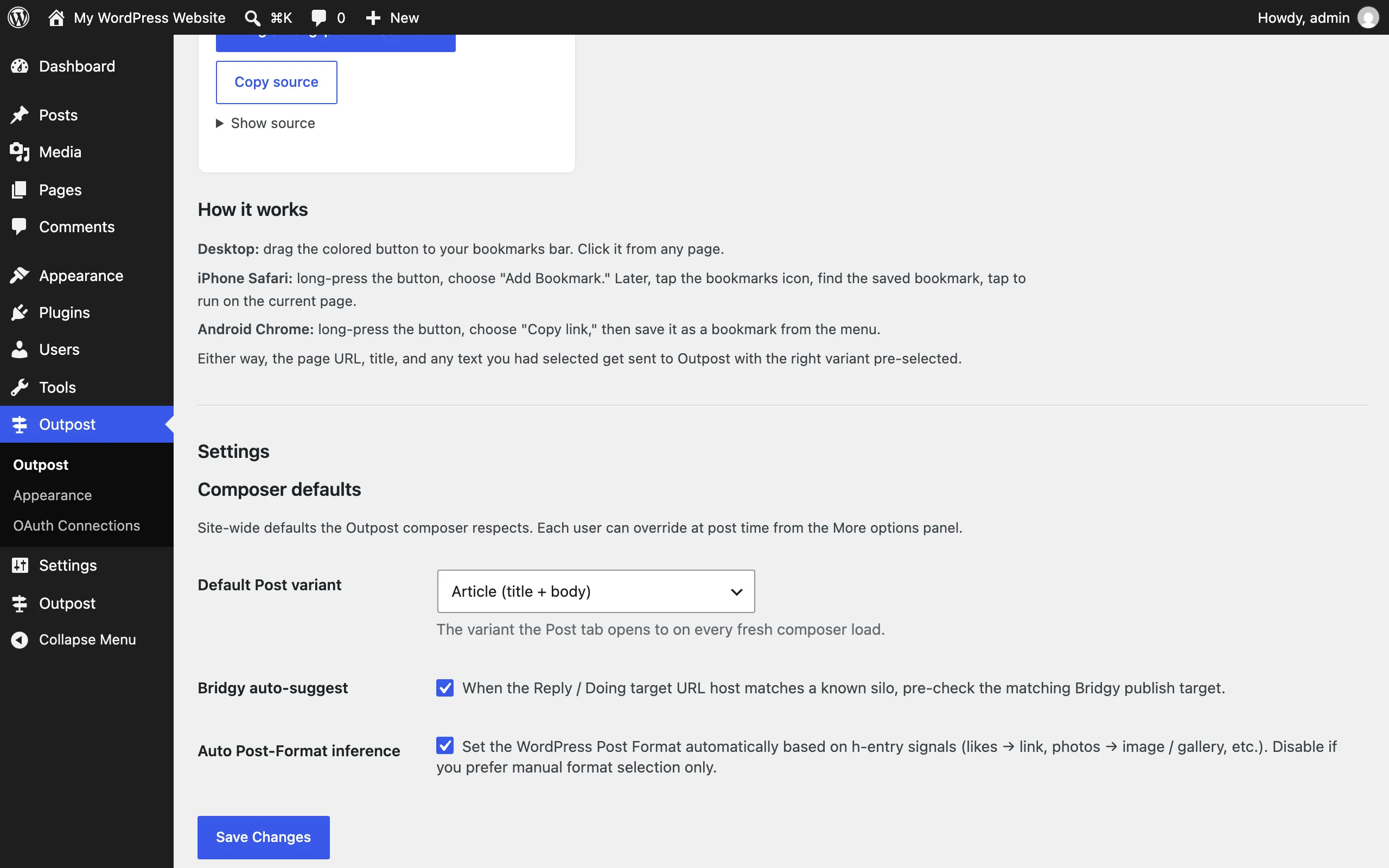
The screenshot predates the Default categories and Default tags fields, which sit between Default Post variant and Bridgy auto-suggest.
Outpost Settings (multi-tab page)
Section titled “Outpost Settings (multi-tab page)”Location: wp-admin → Outpost → Settings. Requires manage_options.
API Keys tab
Section titled “API Keys tab”The default tab. Syndication destinations and integrations (newsletter services and similar) register their credential fields here — the exact fields you see depend on which destination adapters are available in your version.
Sensitive fields are stored encrypted. If the Outpost encryption key isn’t configured, this tab shows an error — “Outpost encryption key is not configured. Sensitive settings cannot be saved until the key is set.” — and hides the form until the key exists. Outpost can generate a key automatically (stored in the database) but recommends defining the OUTPOST_ENCRYPTION_KEY constant in wp-config.php; an admin notice explains this. See the developer note at concepts/encryption-key.md for details.
If a tab shows “No settings registered for this tab yet,” no destination has added fields — that’s expected until you’re running adapters that need credentials.
Appearance
Section titled “Appearance”Location: wp-admin → Outpost (first menu) → Appearance. Available to anyone who can edit posts.
The “Outpost Appearance” page controls how the composer paints itself:
- Mode — a day/night preference. This is per-user: two contributors on the same site can pick different modes.
- Token overrides — colors and fonts inherit from your active theme; you can override individual design tokens here.
OAuth Connections
Section titled “OAuth Connections”Location: wp-admin → Outpost (first menu) → OAuth Connections. Requires manage_options.
The “Outpost OAuth Connections” page lists external providers (services like Oura, WHOOP, Polar, Notion, Ride With GPS, and Ravelry, depending on your version) with a status column and Connect/Disconnect actions. Connecting sends you through that provider’s sign-in; tokens are stored per user. Use Disconnect to revoke a connection.
iOS Shortcut
Section titled “iOS Shortcut”Location: wp-admin → Settings → Outpost iOS Shortcut. Requires manage_options.
iOS Safari doesn’t support the Web Share Target API, so iOS users install a small Apple Shortcut that sends share-sheet content to Outpost. The “Outpost iOS Shortcut Bridge” page walks through it:
- Install the Shortcut — a button opens the published Shortcut link on your iPhone or iPad. (If the page says the iCloud Shortcut link isn’t yet published, this feature is waiting on a release.)
- Token — the page manages a personal token the Shortcut uses to authenticate as you. You can generate, regenerate, or revoke it here. Regenerate if you think the token leaked; revoke to disable the bridge.
Settings that don’t exist (yet)
Section titled “Settings that don’t exist (yet)”The plugin’s readme mentions configuring the composer’s route slug, but the current code serves the composer at the fixed path /post with no route-slug setting. Documented here so you don’t go hunting for it.