Getting started
Your first session with Outpost: sign in, post a note from your phone, and install the composer to your home screen. This assumes you’ve finished Installation — IndieAuth, Micropub, and Outpost all active.
1. Open the composer on your phone
Section titled “1. Open the composer on your phone”On your phone’s browser, visit:
https://your-site.example/post/Expected result: the Outpost composer loads — a mobile-first posting screen, not your theme’s regular page layout. If you instead see a setup page naming a missing plugin, activate that plugin and reload (see Troubleshooting).
2. Sign in with IndieAuth
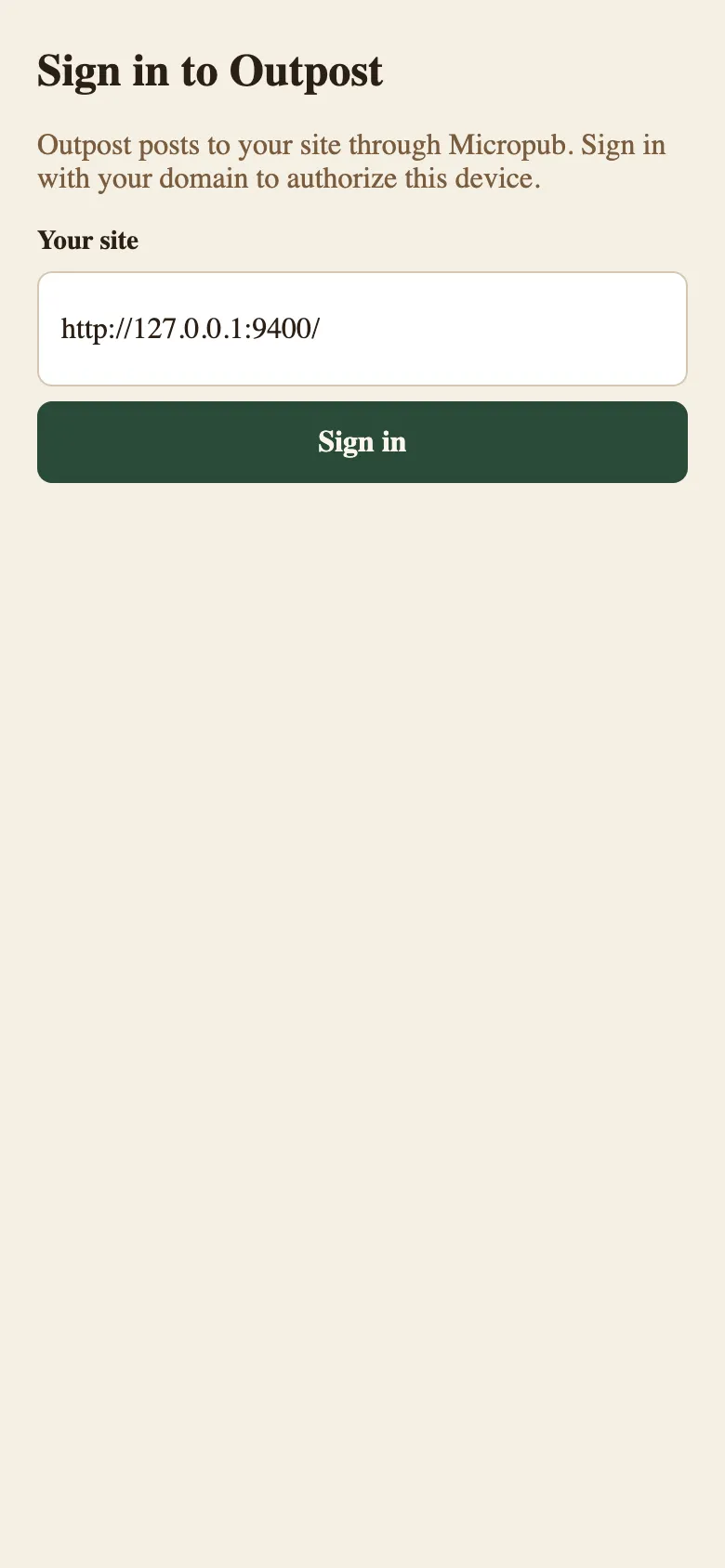
Section titled “2. Sign in with IndieAuth”The composer asks you to sign in with IndieAuth — your WordPress site is the identity provider, so you sign in to your own site rather than a third-party service. Approve the sign-in when your site prompts you.
Expected result: the composer shows its posting modes and you’re ready to write.
3. Post a note
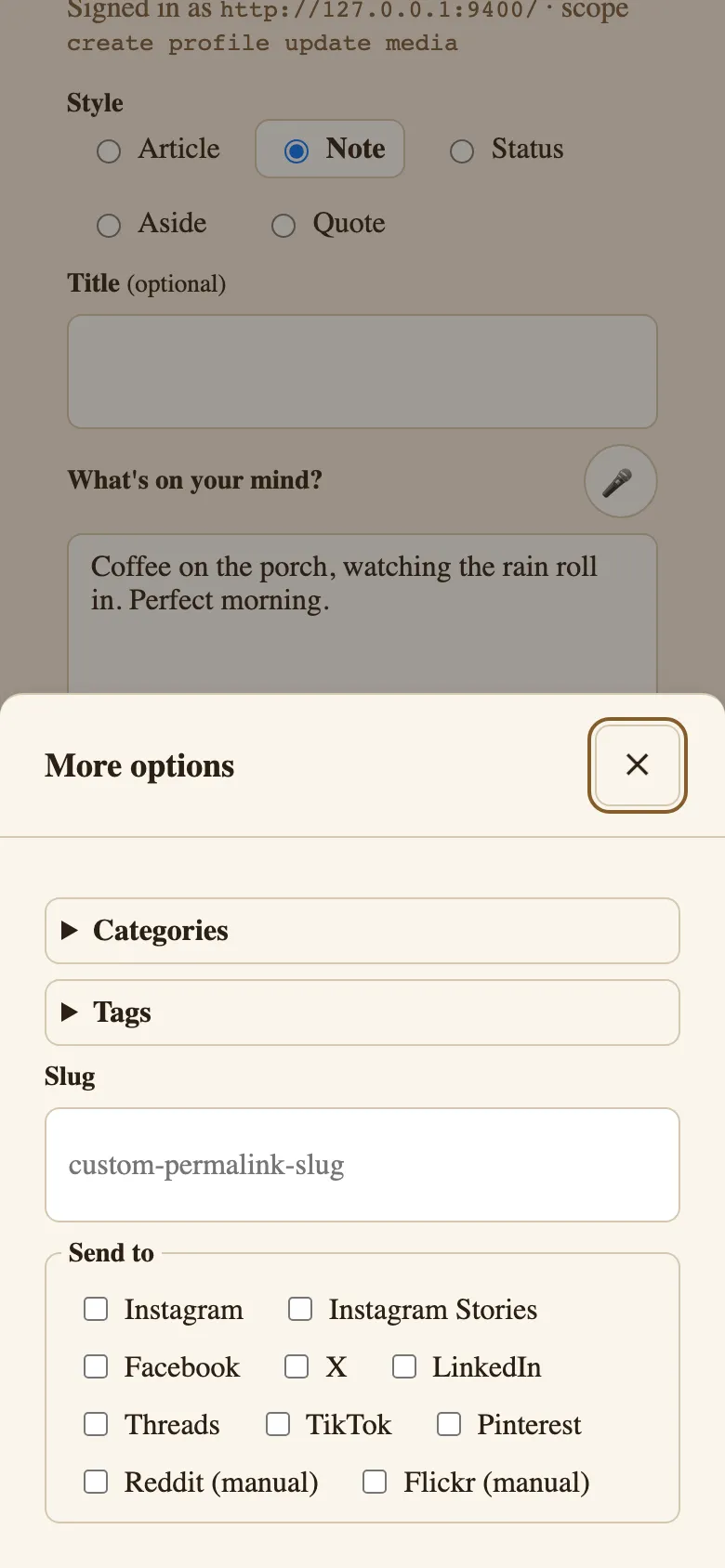
Section titled “3. Post a note”- The composer opens on a posting tab. Pick Note if it isn’t already selected. (Site admins can change which variant opens by default — see Settings.)
- Type a short post.
- If you use syndication destinations, chips for each configured destination appear enabled by default — tap any chip to turn it off for this post.
- Tap post.
Expected result: a success message with a link to the new post on your site. Open it to confirm the note published.
If you get “Posted, but the server did not return a link. Check your site to confirm it published,” do check — on a few composer variants an open bug can report success without creating a post (see Troubleshooting).
4. Install to your home screen
Section titled “4. Install to your home screen”The composer is a PWA, so you can install it like an app:
- iOS (Safari): tap the Share button, then “Add to Home Screen.”
- Android (Chrome): accept the install banner, or open the browser menu and choose “Add to Home screen” / “Install app.”
Expected result: an Outpost icon on your home screen that opens straight into the composer.
(Screenshot planned: see screenshot inventory.)
First-run notes
Section titled “First-run notes”- Offline posting: if you post without a connection, the draft queues on your device and submits when you’re back online. A queue indicator shows pending drafts with retry and dismiss controls.
- Companions round out the kind-shaped modes: all composer tabs — the Doing group (Listen, Watch, Read, Play, Game, Jam, Checkin, Eat, Drink, Exercise, Craft, Event, Review, Video, Audio) and the Life group (Mood, Weather, Sleep, Trip, Itinerary, Question) included — are always visible. With the Post Kinds for IndieWeb in Block Themes companion plugin active, every entry is classified and rendered as its proper post kind on your site and the media “Look it up” search works; without it they still publish, but as generic notes.
- Encryption key notice: if you plan to store API keys or connect external accounts, wp-admin may show a notice about configuring an Outpost encryption key. Sensitive settings can’t be saved until the key is set up — see Settings.
- Managed hosting: some managed WordPress hosts strip the authorization header from requests, which can break sign-in or lookups. See Troubleshooting if posting fails after a successful sign-in.
Where to go next
Section titled “Where to go next”- Settings — composer defaults, API keys, appearance, and connections.
- Common tasks — replies, bookmarklets, the share sheet, and more.