Common tasks
Step-by-step instructions for the everyday things you’ll do with Post Formats for Block Themes.
Choose a format for a new post
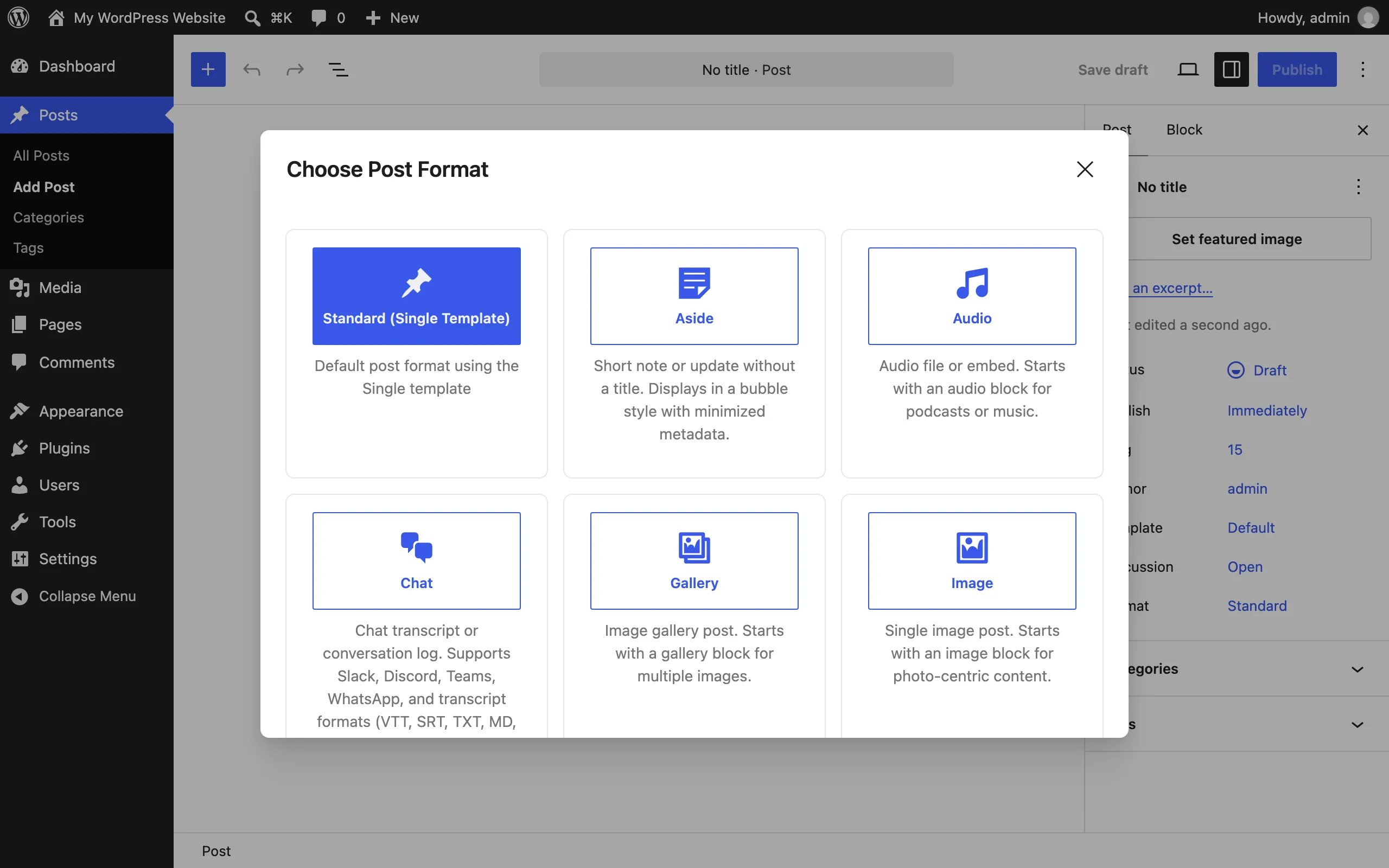
Section titled “Choose a format for a new post”- Go to Posts → Add New.
- In the Choose Post Format modal, pick one of the 10 formats. Its pattern is inserted with a locked first block.
- To skip formats entirely, choose Standard or close the modal.
Change a post’s format
Section titled “Change a post’s format”- Open the post in the editor.
- In the post sidebar, find the Format Switcher panel.
- Pick the new format from the dropdown, and choose whether to replace your content with the new format’s pattern or keep it.
Publish a chat transcript
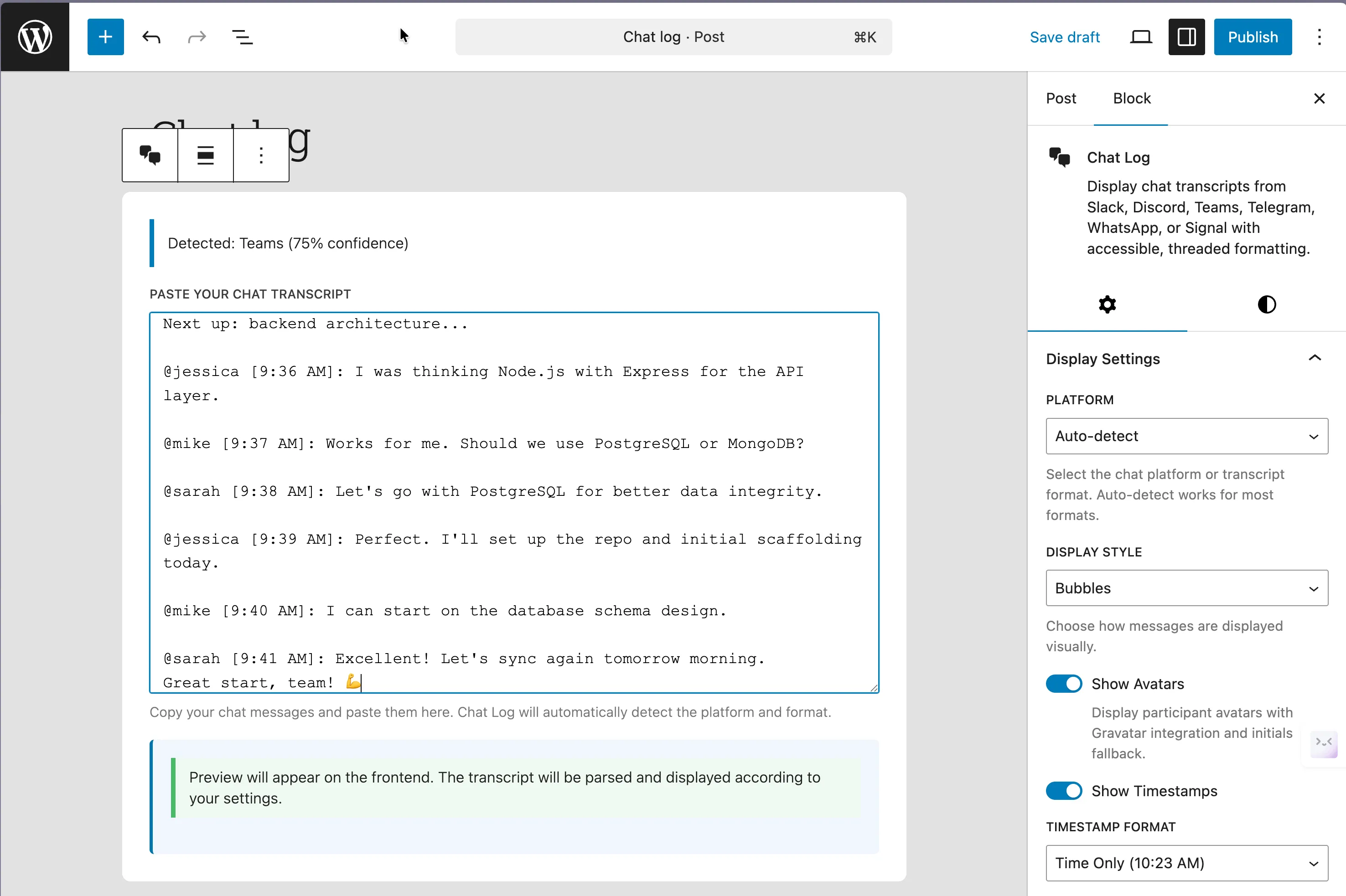
Section titled “Publish a chat transcript”- Create a new post and choose the Chat format (or insert the Chat Log block into any post).
- Paste your transcript into the block. Slack, Discord, Teams, Telegram, WhatsApp, and Signal exports are supported; the block auto-detects the platform and shows what it detected (for example “Detected: WhatsApp”).
- Adjust display settings in the block sidebar: platform, display style, avatars, timestamps and their format, thread collapsing, and participant list.
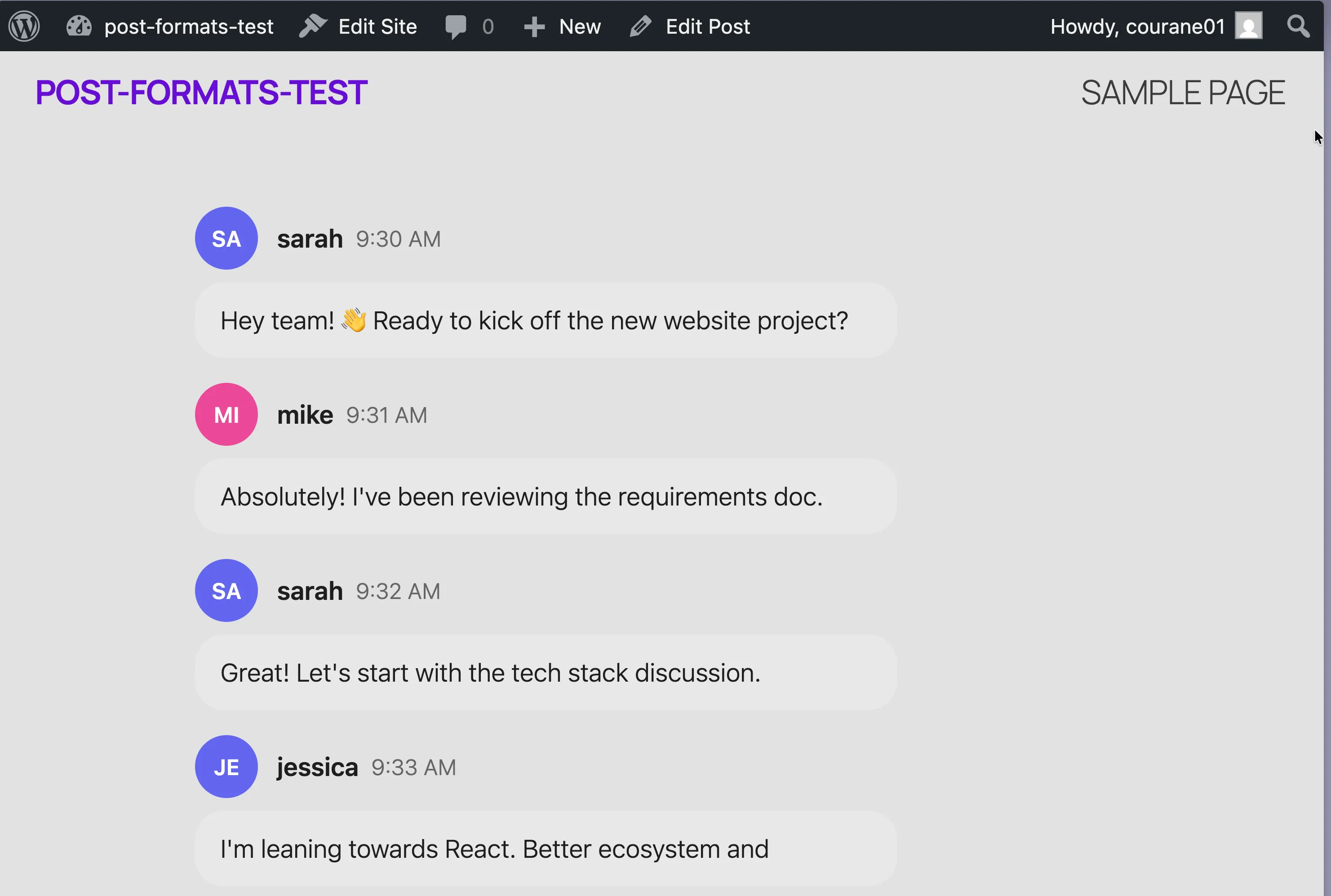
- Publish. The transcript renders as an accessible, threaded conversation.
If a paste doesn’t parse, check the expected line patterns in the chat log format examples — for example, Slack-style pastes need two spaces between the name and the time (sarah 9:30 AM).
Change how a chat log is displayed
Section titled “Change how a chat log is displayed”- Select the Chat Log block.
- In the block sidebar, change Display style: bubbles (default), IRC, transcript, or timeline.
- Toggle avatars, timestamps, and the participant list to taste.
Post a short status update
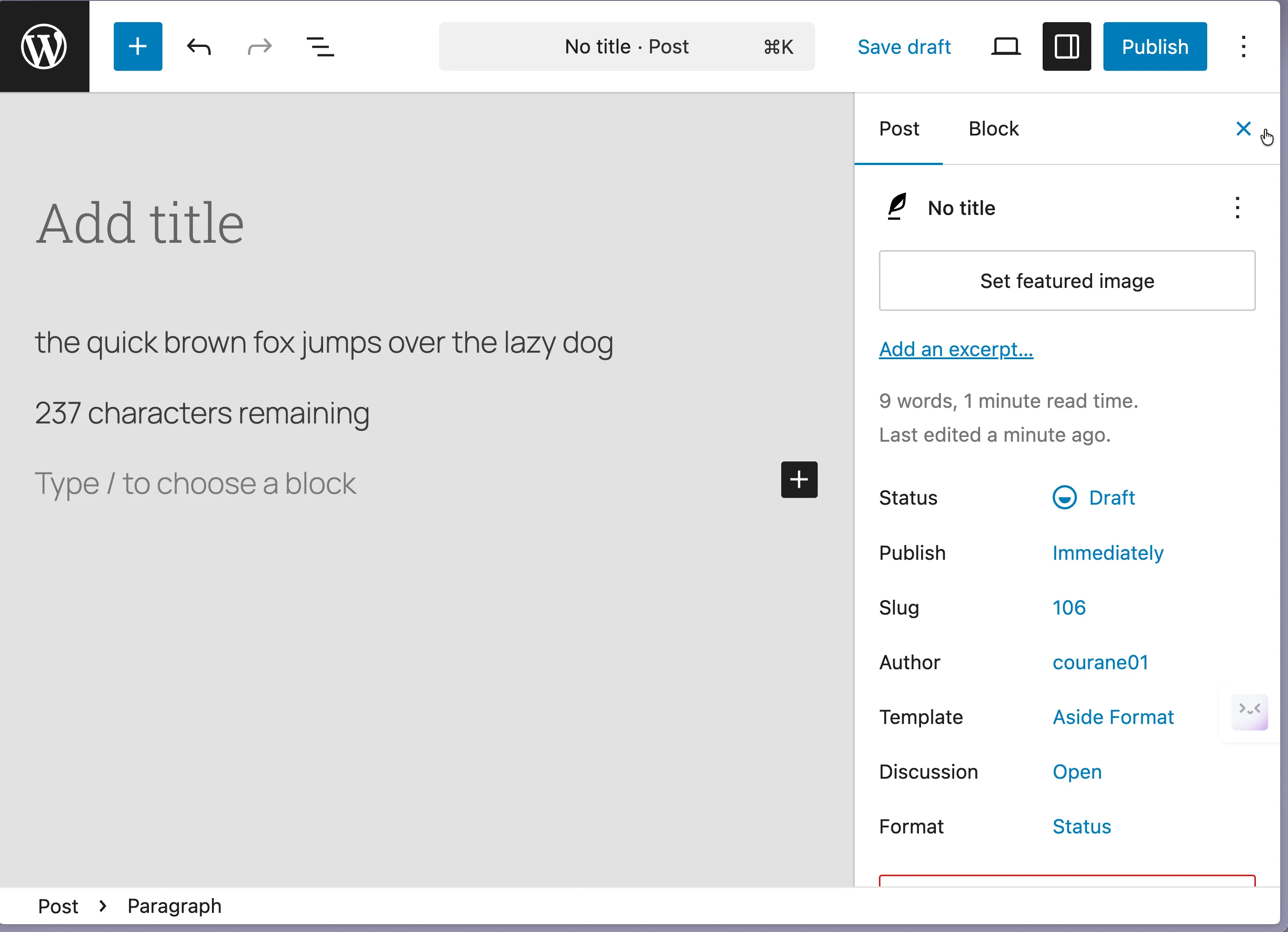
Section titled “Post a short status update”- Create a new post and choose the Status format.
- Type your update. A live counter shows how many of the 280 characters remain, social-media style, and warns when you go over the limit.
Display a post’s format on your site
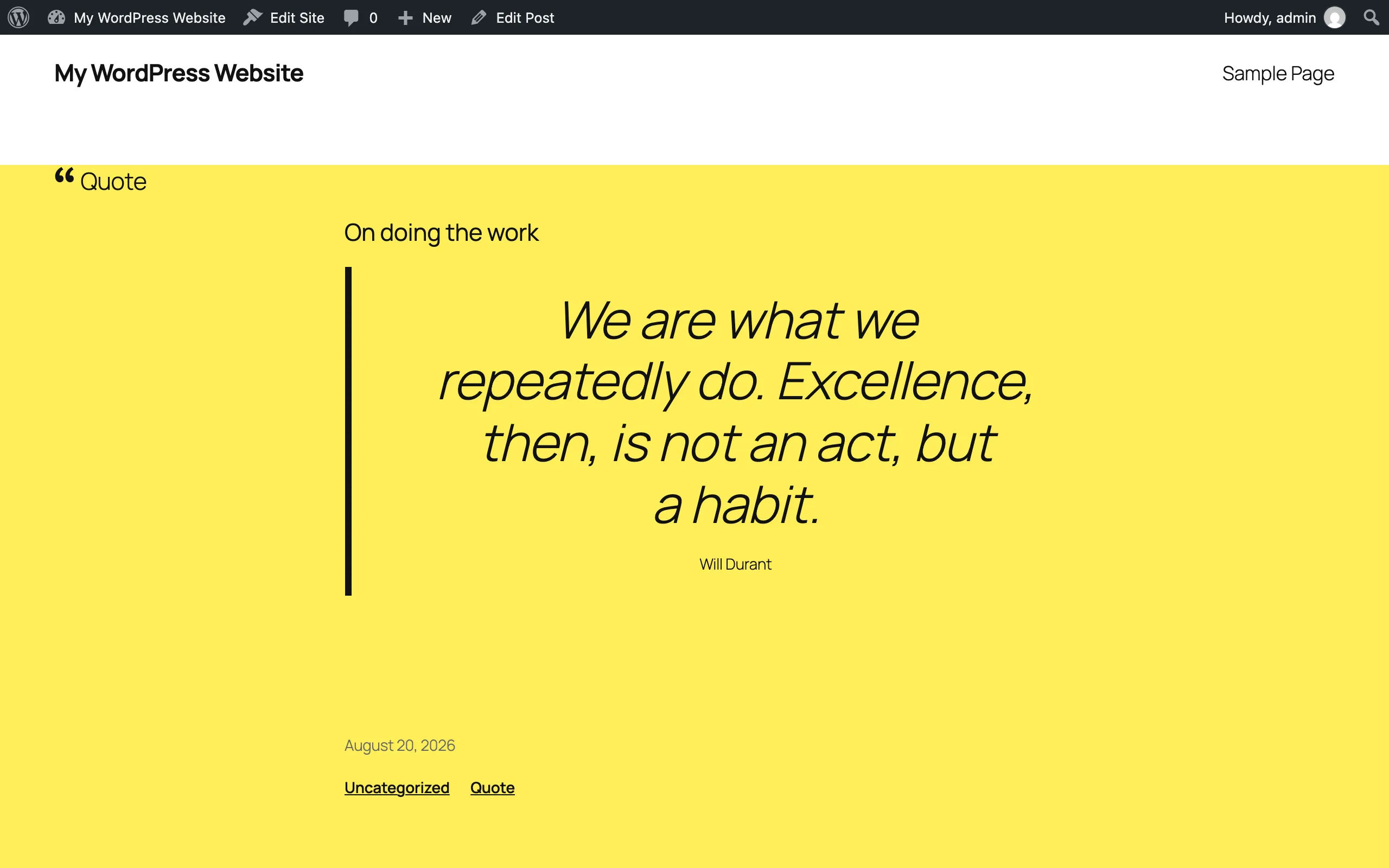
Section titled “Display a post’s format on your site”Three blocks show format information; add them in the Site Editor (to templates) or in individual posts:
- Format Badge — shows the format as a badge. It’s automatically inserted before the post title via Block Hooks, so you may already have it; you can remove or move it in the Site Editor.
- Format Icon — renders the format’s SVG icon. By default the format name is available to screen readers only; enable Show label for visible text. The block hides itself on standard-format posts.
- Post Format — shows the format as a text link to the format archive, with alignment and separator options.
Change the format icon style
Section titled “Change the format icon style”- Go to Settings → Post Formats.
- Under Icon set, choose Hand-drawn (default) or Filled silhouettes.
- Save. The change is instant; no posts need re-saving.
Fix posts whose format doesn’t match their content
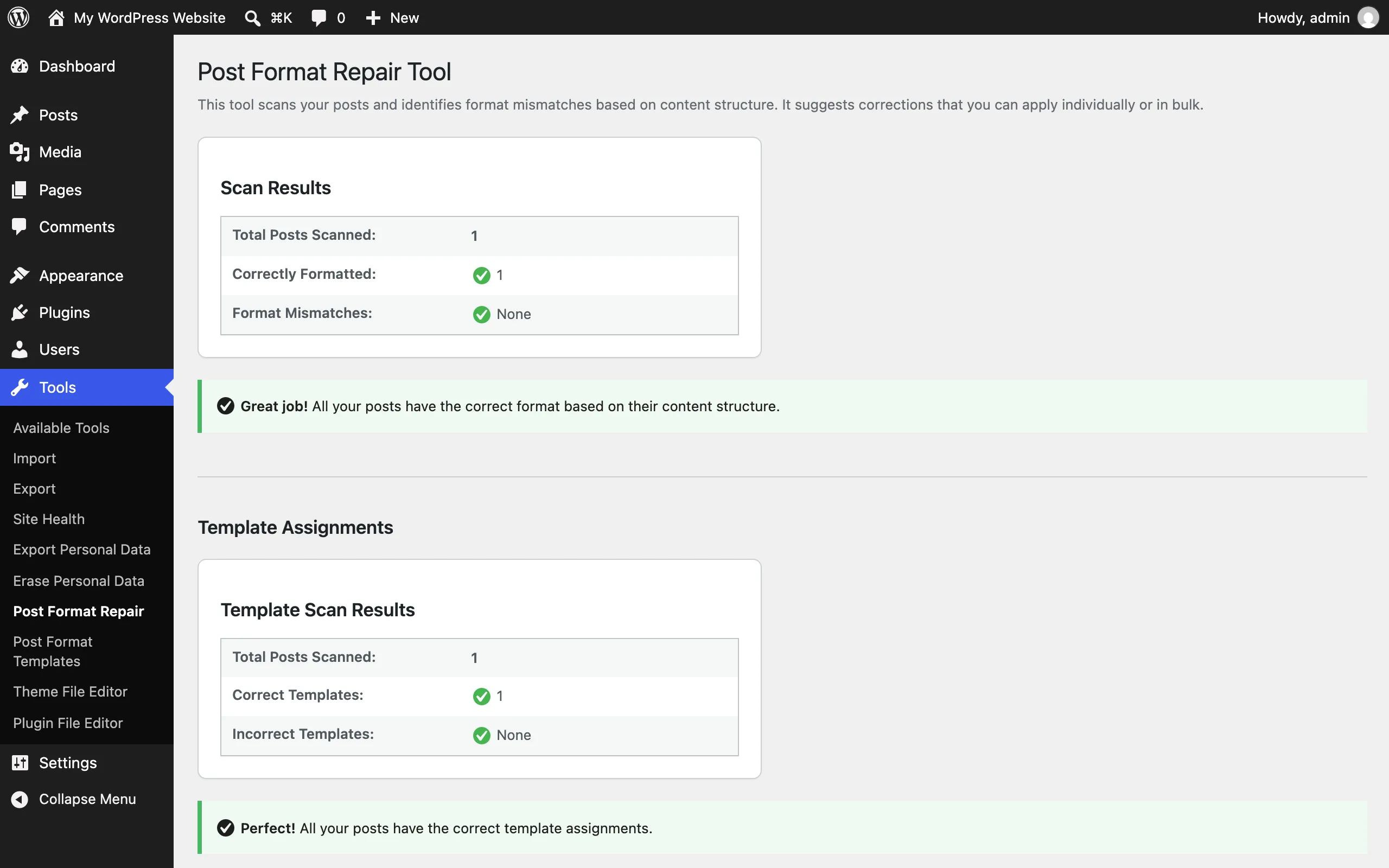
Section titled “Fix posts whose format doesn’t match their content”- Go to Tools → Post Format Repair.
- Review the scan results and the detected mismatches.
- Leave Dry run checked to preview, then uncheck it and click Apply All Suggestions — or use the per-post Apply buttons. A revision is created for each post before changes are applied.
Customize a format’s appearance
Section titled “Customize a format’s appearance”Use the Site Editor — no code needed. Format templates and styles are editable like any other template. Follow the Site Editor guide or the format customization quick start.
Enable the plugin’s block templates
Section titled “Enable the plugin’s block templates”If your theme has no format-specific templates:
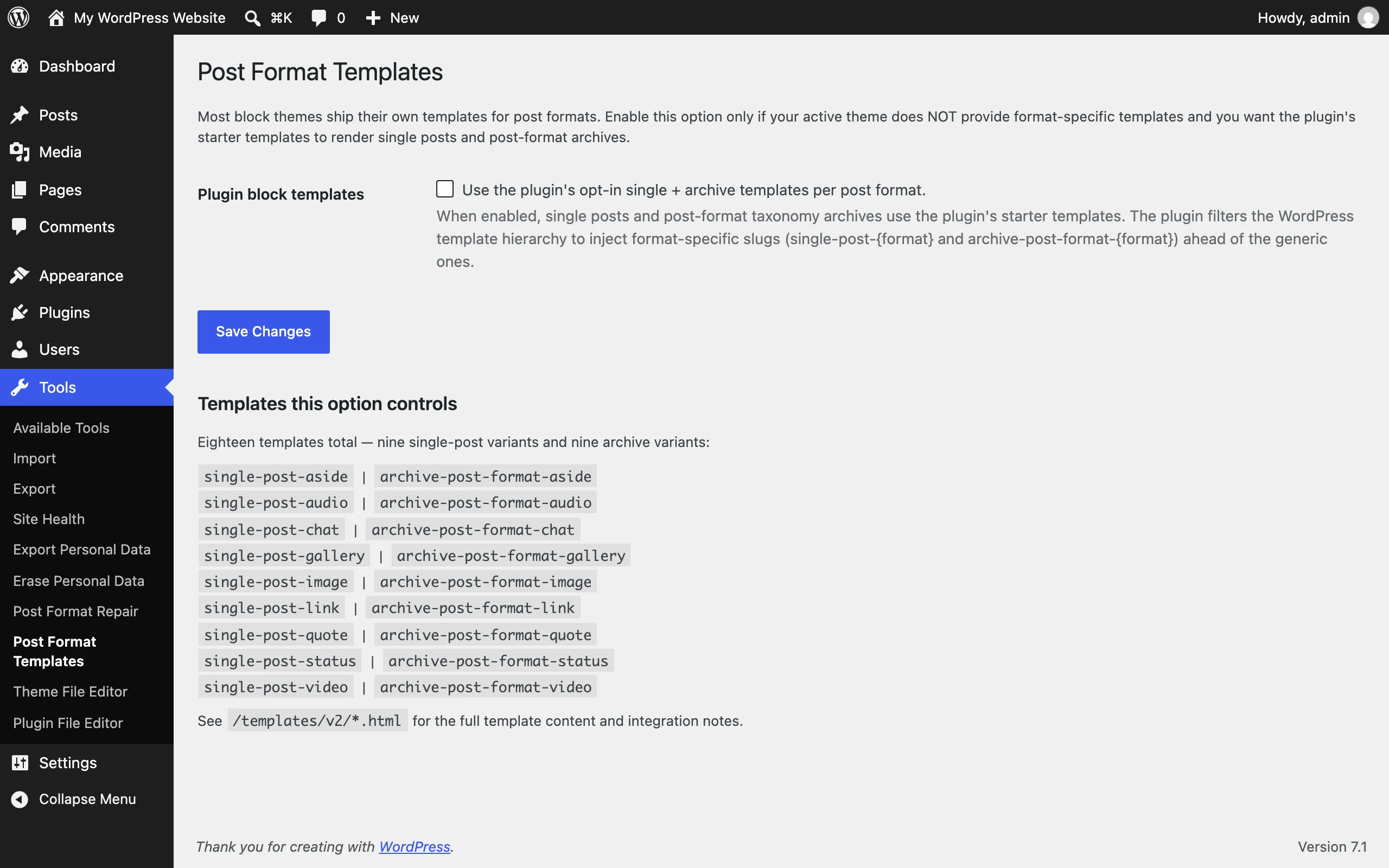
- Go to Tools → Post Format Templates.
- Check “Use the plugin’s opt-in single + archive templates per post format.” and save.
- Single posts and post-format archives now use the plugin’s 18 starter templates, which you can customize in the Site Editor.
Confirm auto-detection applied a format
Section titled “Confirm auto-detection applied a format”- Create a new post, skip the modal, and add a distinctive first block (for example, a pullquote).
- Save the post.
- Check the Format Switcher or the post sidebar: the detected format (Quote, in this example) is applied. It’s applied once — later edits won’t change it, and it never overrides a format you set manually.