Installation
How to install and activate Post Formats for Block Themes, and how to confirm it’s working.
Before you start
Section titled “Before you start”- WordPress 6.9 or higher and PHP 7.4 or higher, as of version 1.1.5 (plugin header).
- Your active theme must be a block theme (a theme with a
theme.jsonand block templates, such as Twenty Twenty-Five). This is a hard requirement — see what happens if requirements aren’t met. - JavaScript enabled in your browser (the editor features are JavaScript-based).
Install from WordPress.org (recommended)
Section titled “Install from WordPress.org (recommended)”The plugin is listed in the WordPress.org plugin directory.
- Log in to wp-admin.
- Go to Plugins → Add New.
- Search for Post Formats for Block Themes.
- Click Install Now, then Activate.
Install from a ZIP file
Section titled “Install from a ZIP file”Use a ZIP from WordPress.org or from the GitHub releases page.
- Download the plugin ZIP.
- Go to Plugins → Add New → Upload Plugin.
- Choose the ZIP file and click Install Now.
- Click Activate Plugin.
Install from GitHub (developers)
Section titled “Install from GitHub (developers)”Clone the repository into your plugins directory:
cd wp-content/pluginsgit clone https://github.com/courtneyr-dev/post-formats-for-block-themes.gitThe compiled editor script (build/index.js) is included in the repository, so no build step is required before activation. If you plan to modify the editor JavaScript in src/, rebuild with npm install && npm run build.
Activate from Plugins in wp-admin as usual.
What happens if requirements aren’t met
Section titled “What happens if requirements aren’t met”The plugin checks requirements at activation:
- Classic theme active: activation stops with the error “Post Formats for Block Themes requires a block theme. Classic themes are not supported.” and the plugin deactivates itself. Switch to a block theme, then activate again.
- WordPress older than 6.9: activation stops with “Post Formats for Block Themes requires WordPress 6.9 or higher.” and the plugin deactivates itself. Update WordPress first.
Both checks show a link back to the plugins screen; nothing else is changed on your site.
Confirm it’s working
Section titled “Confirm it’s working”- Go to Posts → Add New.
- The Choose Post Format modal should appear, showing 10 format cards (Standard, Aside, Audio, Chat, Gallery, Image, Link, Quote, Status, Video).
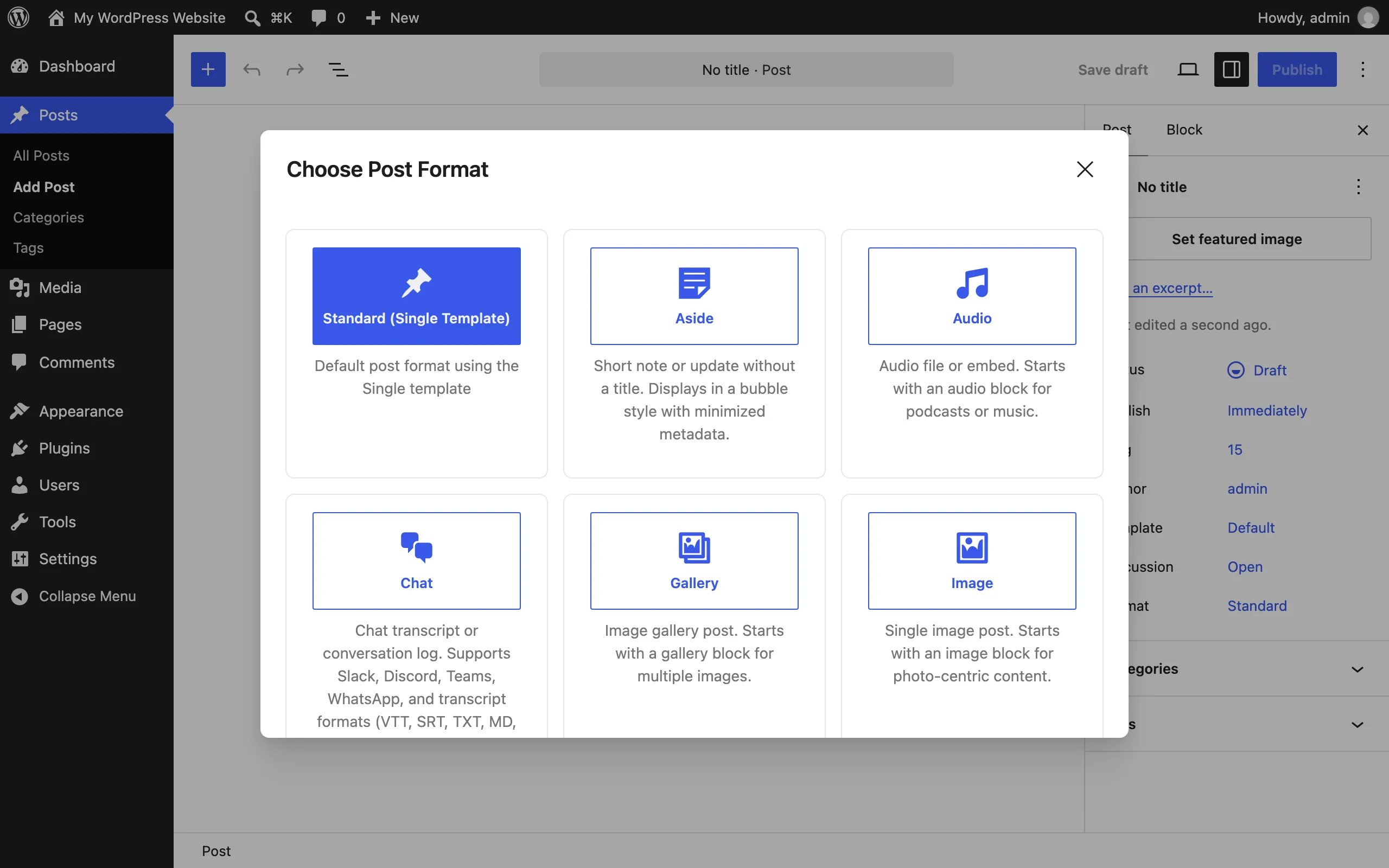
You should also see Tools → Post Format Repair and Settings → Post Formats in the wp-admin menu.