Capture WordPress, Drupal, and other apps
Point the tool at any web app by choosing a preset in the config. Everything after capture (Figma, alt text, swaps, and verification) is the same for every app.
Choose a preset
| Preset | For | Sign-in |
|---|---|---|
p1-editor | The P1 editor (the default when a config names no preset) | You, in the dedicated Chrome |
wordpress-admin | wp-admin, the block editor, the Site Editor | Login form, WP_USER and WP_PASSWORD from your shell |
drupal-admin | Drupal administration pages (Claro) | Login form, DRUPAL_USER and DRUPAL_PASSWORD from your shell |
content-publisher | Pantheon Content Publisher’s dashboard | You, in the dedicated Chrome |
pantheon-dashboard | The Pantheon dashboard: workspace pages and a site’s environments | You, in the dedicated Chrome |
gdocs-addon | A Google Docs add-on’s side panel, such as Content Publisher | You, in the dedicated Chrome |
word-addin | An Office add-in’s task pane in Word for the web, such as Content Publisher | You, in the dedicated Chrome |
public-site | Any public website | None |
Each preset has a starter brief in briefs/<preset>.json and an example config in examples/<preset>.config.example.json. What each preset checks and hides: Presets.
WordPress admin
-
Start a local site. WordPress Studio runs WordPress on PHP directly, with no Docker:
studio site create --name docs-shots --path ~/Studio/docs-shotsStudio shows the admin username and password. Its MCP tool returns the password base64-encoded: decode it before you sign in.
-
Write a config:
{ "topic": "wp-docs", "preset": "wordpress-admin", "baseUrl": "http://localhost:8881" } -
Put the sign-in in your shell for this session only.
read -skeeps the password off the screen and out of your shell history:export WP_USER=admin read -s WP_PASSWORD && export WP_PASSWORD -
Check, then capture:
node scripts/preflight.mjs --config wp.config.json --brief briefs/wordpress-admin.json
node scripts/capture.mjs --config wp.config.json --brief briefs/wordpress-admin.json --out-dir <out>/wp
Authenticating... dashboard OK plugins OK block-editor OK site-editor OK front-page OK Done: 5/5 captured, 0 failed, 0 with HTTP >= 400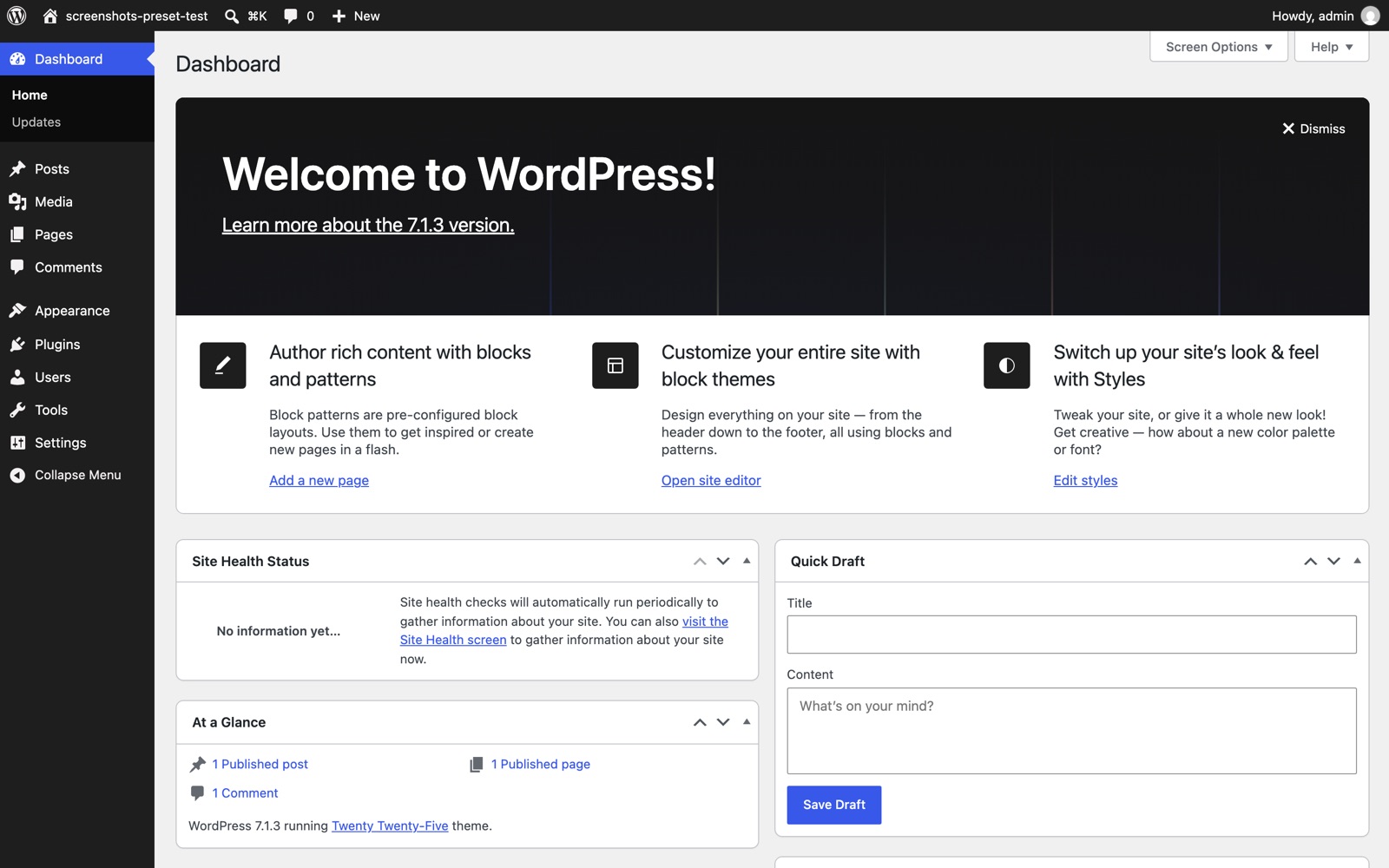
dashboard: admin notices and update counts hidden. 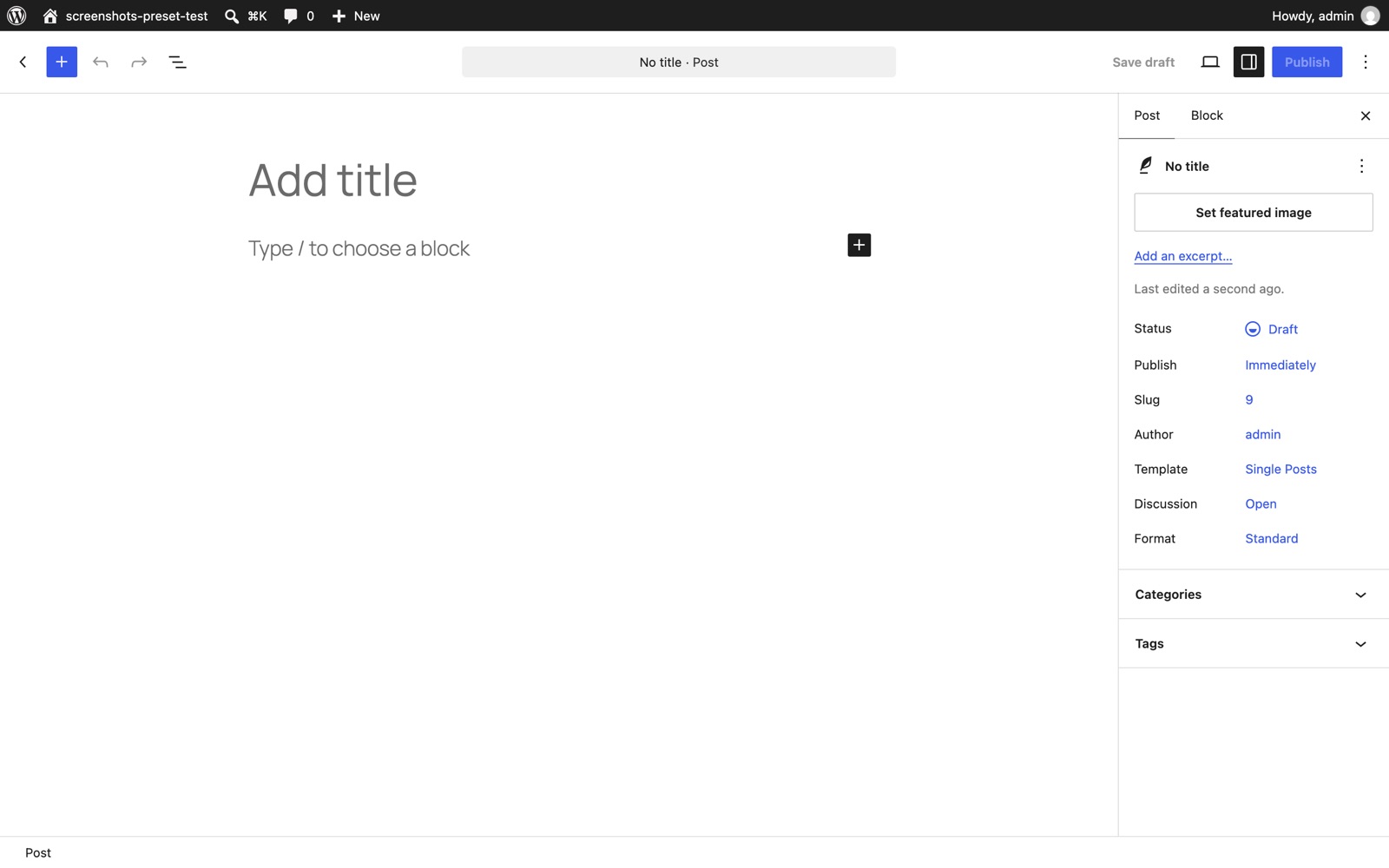
block-editor: the welcome guide is hidden, not dismissed.
For a production site with single sign-on or two-factor authentication, add "signIn": "chrome" and the chrome settings, and sign in yourself in the dedicated Chrome, as for P1.
Drupal admin
-
Start a local site. With PHP 8.3 or later and Composer, Drupal runs on SQLite and PHP’s built-in server, with no containers (about 160 MB):
composer create-project drupal/recommended-project drupal-docs
cd drupal-docs
vendor/bin/dr install standard --site-name="Docs screenshots"
cd web && php -S 127.0.0.1:8890 .ht.router.php
dr installprints the admin password once. Drupal 11.4 replacedcore/scripts/drupalwithdr. -
Write a config with
"preset": "drupal-admin"and"baseUrl": "http://127.0.0.1:8890", exportDRUPAL_USERandDRUPAL_PASSWORDthe same way, and capture withbriefs/drupal-admin.json.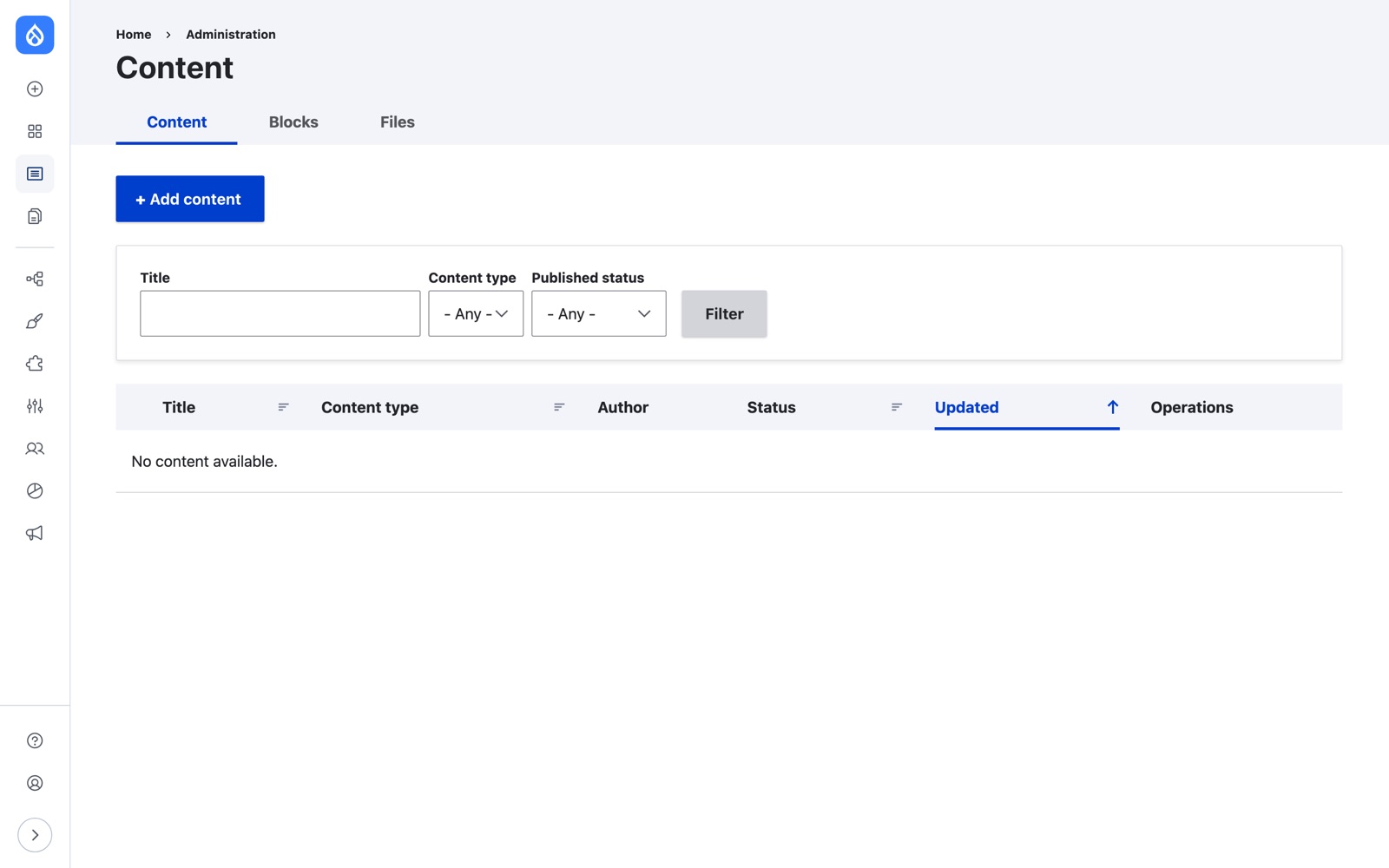
content 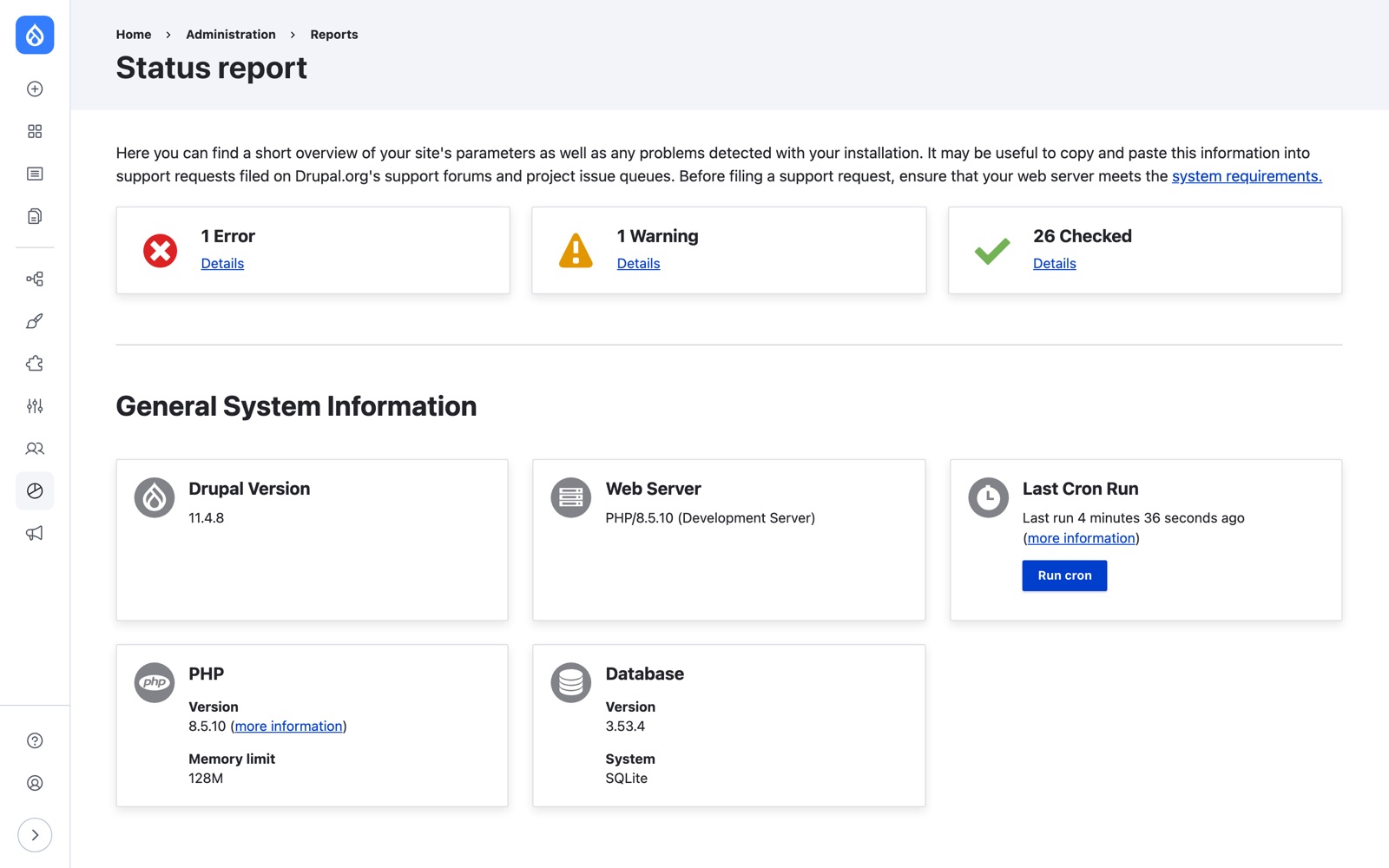
status-report
Content Publisher
- Copy
examples/content-publisher.config.example.json. Setparams.collectionIdto a collection’s ID, from its URL, for the collection shot. - Start the dedicated Chrome with
node scripts/chrome.mjs --config <file>and sign in with Google. - Capture with
briefs/content-publisher.json.
The starter brief covers Overview, Collections, Sites, and one collection. It leaves out Accounts and Tokens, which show account data. A trial account shows a free-trial banner across the top; the preset leaves it in.
Public websites
Use "preset": "public-site". To build a brief from a sitemap instead of the starter brief:
node scripts/routes.mjs --topic my-site --site https://example.com --sitemap
The preset hides common cookie banners and chat widgets, such as Qualified’s docked sales chat on pantheon.io. A site behind a bot challenge fails closed: no PNG is saved.
Desktop app windows
Use scripts/capture-window.mjs for a screen no browser can reach, such as an AI assistant’s reply in Claude Desktop or Cursor. It runs on macOS only.
- Set the window up yourself: open the app, run the prompt, and leave the reply on screen. The script never clicks or types in the app.
-
Find the window, then capture it:
node scripts/capture-window.mjs --list --app Claude
node scripts/capture-window.mjs --app Claude --front --slug assistant-reply --topic my-doc
assistant-reply OK Claude "Claude" 2990x2146 (2x) Report: screenshots/my-doc/capture-report.jsonThe shot goes to
screenshots/<topic>/, which git ignores, at the display’s native resolution. It’s added to that folder’scapture-report.json, so Push a run to Figma works the same way.
| Option | Use it when |
|---|---|
--title "<text>" | The app has more than one window. Pass part of the title --list shows. |
--front | The window is behind another app or in another Stage Manager group. Minimized windows can’t be captured. |
--size 1440x900 | Shots must match a set size. Needs Accessibility permission. |
--delay 3 | You need a few seconds to hover or open a menu first. |
The app running the command (Terminal, or Claude) needs Screen Recording permission in System Settings > Privacy & Security. Before you share the PNG, check it for account names, file paths, and other people’s data.
Add your own app
Copy the closest preset in scripts/presets/, change its sign-in, CSS, and actions, and point a brief’s presets at it. Presets lists every field.
Next: Push a run to Figma.