Capture the editor
Capture the approved screenshots from the signed-in P1 editor. For WordPress, Drupal, Content Publisher, or a public site, the steps are the same with that app’s preset: Capture WordPress, Drupal, and other apps.
Steps
-
Write a brief from the approved records:
node scripts/inventory.mjs brief --inventory <inventory> --config p1-editor.config.json --release <new version> --out brief.json -
Start the dedicated Chrome. This prints the command; run it yourself:
node scripts/chrome.mjs --config p1-editor.config.jsonIn that window, sign in to P1, choose the workstream in the editor, and wait until the Blocks panel, canvas, and page settings are on screen. The tool never signs in for you or sees your credentials.
-
Take one validation shot and look at it:
node scripts/capture.mjs --brief brief.json --config p1-editor.config.json --only <id> --out-dir <out>/validate -
Capture the full set, then record it in the inventory:
node scripts/capture.mjs --brief brief.json --config p1-editor.config.json --out-dir <out>/run1 node scripts/inventory.mjs record-capture --run <out>/run1 --assets-dir <assets> --inventory <inventory>record-capturestores each image’s checksum, size, and release, and moves the records tocaptured.p1.live.editor-shell captured refresh 0.20.0 docs-team p1.live.workstream-selector captured refresh 0.20.0 docs-team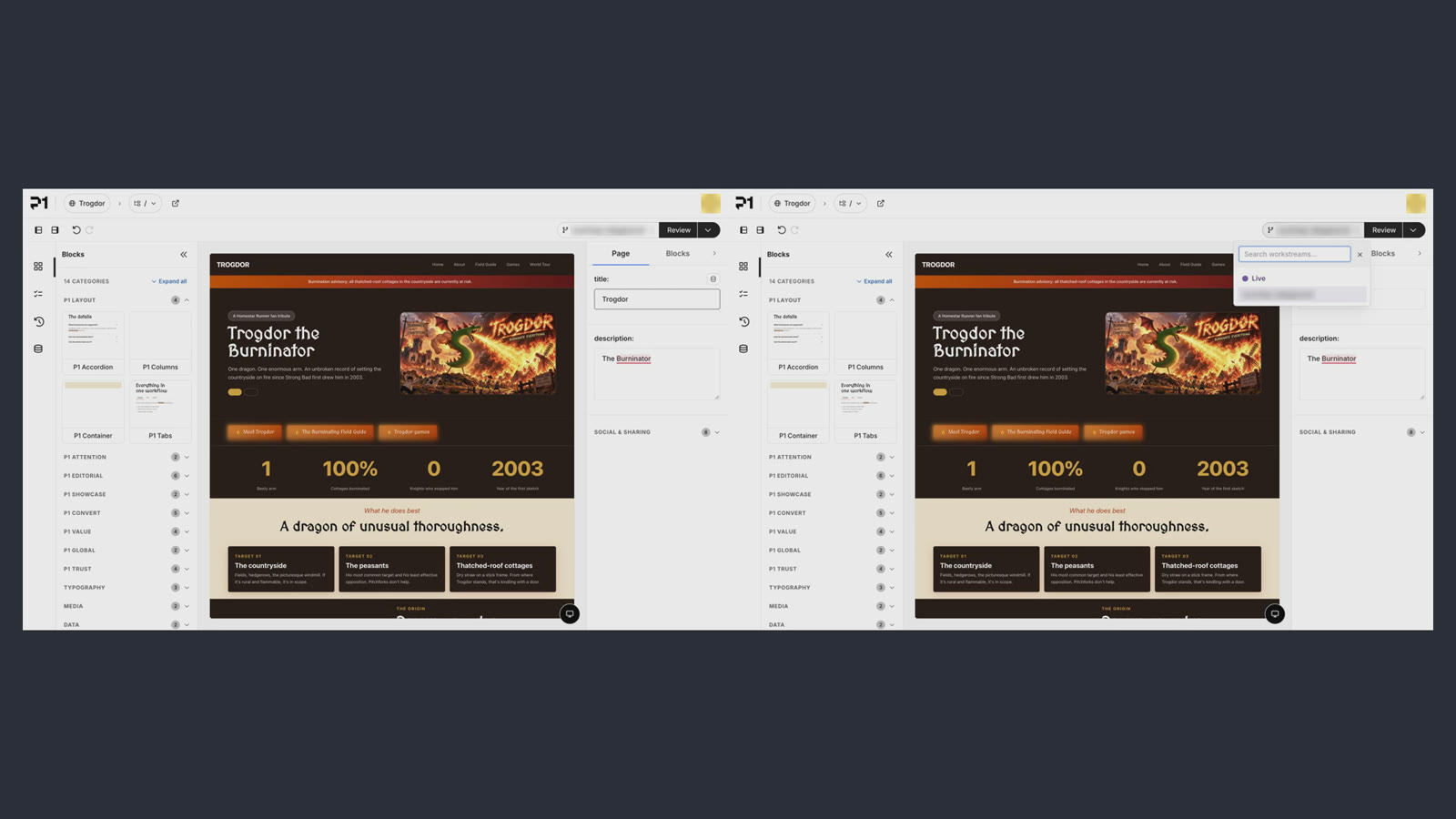
The two 0.20.0 captures from one run. Each passed the signed-in, project, and workstream checks before it was saved.
If a shot fails
A shot fails, and nothing is saved, when the page shows a sign-in screen, a loading state, a bot challenge, the public site, the wrong project or workstream, or no editor. Fix the window and rerun with --only <id>. A navigation timeout is usually transient; rerun it. More in Troubleshoot.
Next: Push a run to Figma.