Set up the tool
One command installs and configures everything: the capture tools, the Figma annotation kit, and both docs targets. Each step can be skipped and rerun.
Before you start
- Node.js 18 or later, npm, git, and Google Chrome.
- The Figma desktop app, with edit access to the file your team annotates in.
- For the Google Docs swap: a Google account that can edit the docs, and a GitHub repository that will hold the screenshots.
Run setup
git clone https://github.com/courtneyr-dev/screenshots-to-docs.git
cd screenshots-to-docs
npm run setup
Setup asks before each step. To run one step later, use npm run setup -- --only <step>. To see what’s done, use npm run setup -- --status.
1. Tools
Installs dependencies and finds Chrome (scripts/setup.sh). The tests and headless captures prefer a headless Chrome build when Playwright or Puppeteer has installed one, because starting the full Chrome app with a fresh profile makes macOS ask to change your default browser.
2. Capture config
Asks for the P1 site origin, project, workstream, page, a dedicated Chrome profile folder, the Figma file key, and a folder for handoff notes. It writes p1-editor.config.json (git-ignored) and runs preflight. Every key is described in Configuration.
3. Figma annotation kit
Builds the plugin and shows you where its manifest is. In the Figma desktop app, once per computer:
- Open any design file. Choose Plugins > Development > Import plugin from manifest…
- Pick
figma-plugin/manifest.jsonfrom this repository.
In each file that needs the kit, run Plugins > Development > Screenshot annotation kit. It adds the Annotation variables and an Annotation kit · Components page with 13 components. If the Pantheon Design System library is enabled for that file, the colors alias it; otherwise the plugin uses the same values locally. Running it again reuses the variables and builds the components on a new, dated page.
4. Markdown docs
Asks for the path to a Markdown docs repository and writes screenshots.map.json there if it’s missing. Edit the map so each screenshot ID points at the image file its pages embed.
5. Google Docs swap
Sets up the Apps Script that replaces images in Google Docs.
- Setup asks for the GitHub repository that holds the screenshots and the path of the manifest in it, and writes the Apps Script project to
build/gdocs-swap/. - It opens your Apps Script settings. Turn on Google Apps Script API.
clasp loginopens your browser to sign in to Google. Setup then creates the project and pushes the code.- It opens GitHub’s token form, filled in for read-only access to repository contents for 90 days. Under Repository access, choose Only select repositories and pick the one repository. Generate the token and copy it.
-
It opens the Apps Script project. In Project Settings > Script properties, add
GITHUB_TOKENwith the token as its value, and click Save script properties.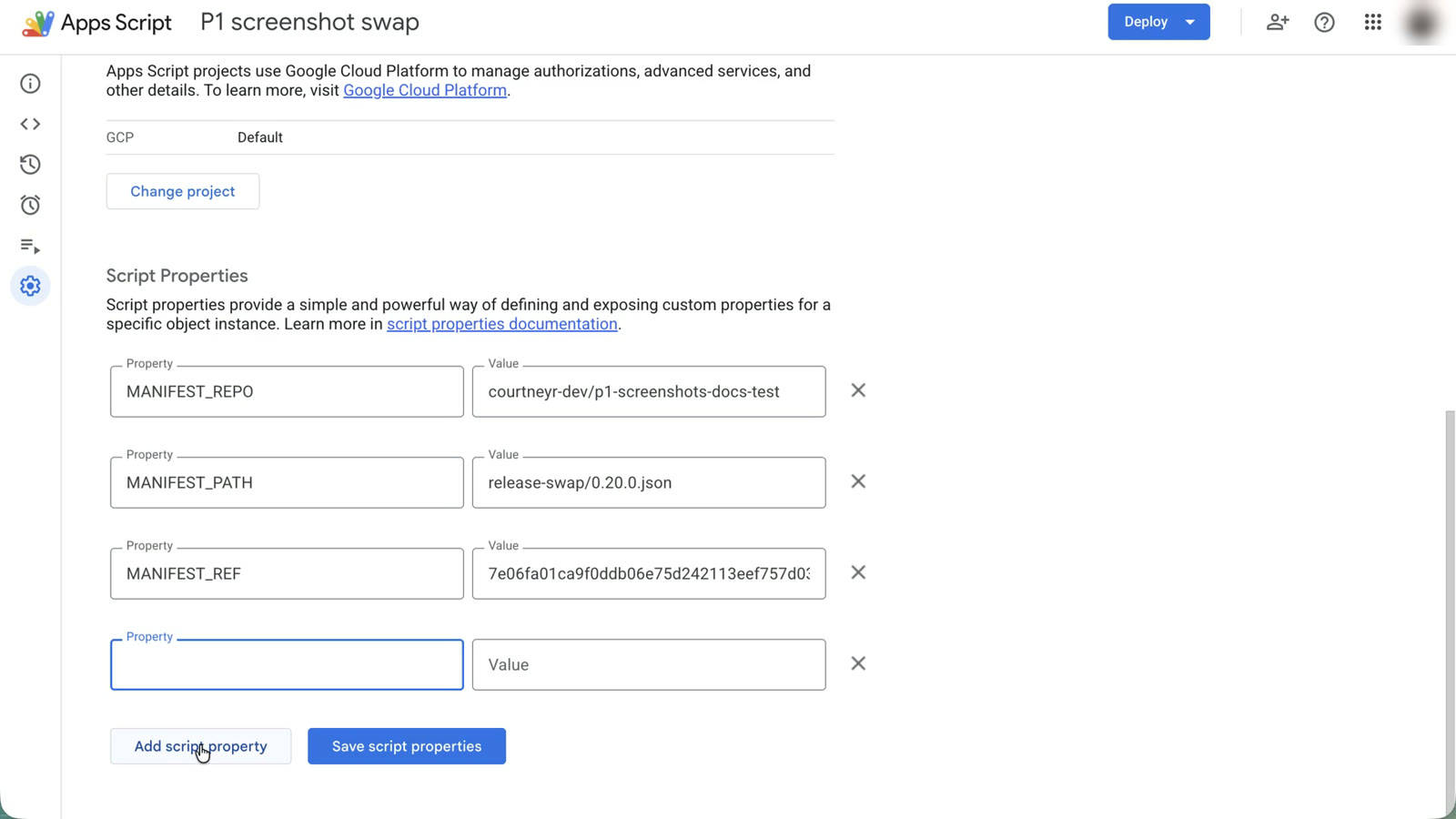
Project Settings > Script properties. Add GITHUB_TOKEN here. - In the editor, run
dryRunSwapand approve the two permissions Google asks for: Docs, and connecting to an external service.
Paste the token only into the Apps Script property. Never into the terminal, a file, or a chat. Setup never asks for it.
Check it
npm run setup -- --status
npm test
Next: Detect a release.