Capture Pantheon products
Screens for each area that Pantheon’s docs show: the dashboard, Content Publisher, P1, and Pantheon’s WordPress plugins and Drupal modules. For how many images each area has and where its releases come from, see Pantheon docs coverage.
| Area | Preset | Starter brief | Status |
|---|---|---|---|
| Pantheon WordPress plugins | wordpress-admin | briefs/pantheon-wordpress-plugins.json | Verified: 5 screens on a local site |
| Pantheon Drupal modules | drupal-admin | briefs/pantheon-drupal-modules.json | Verified: 7 screens on a local site |
| Content Publisher and P1 dashboard (content.pantheon.io) | content-publisher | briefs/content-publisher.json | Verified: 4 screens |
| P1 editor | p1-editor | briefs/p1-editor.json | Verified |
| Pantheon dashboard (dashboard.pantheon.io) | pantheon-dashboard | briefs/pantheon-dashboard.json | Verified: 16 screens |
| Google Docs add-on | gdocs-addon | briefs/gdocs-addon.json, briefs/gdocs-addon-connected.json | Verified: 7 screens |
| Word add-in | word-addin | briefs/word-addin.json, briefs/word-addin-connected.json | Verified: 4 screens |
| Terminal output | none | none | Show it as text, not an image |
Pantheon WordPress plugins
-
Install and activate the plugins on a local or Dev site, for example the WordPress Studio site from Capture WordPress, Drupal, and other apps:
wp plugin install pantheon-content-publisher wp-saml-auth wp-native-php-sessions pantheon-hud pantheon-advanced-page-cache solr-power --activate wp plugin install https://github.com/pantheon-systems/wp-tls-compatibility-checker/archive/refs/tags/1.0.0.zip --activate -
Capture with the
wordpress-adminconfig andbriefs/pantheon-wordpress-plugins.json:content-publisher OK wp-saml-auth OK native-php-sessions OK tls-compatibility-checker OK pantheon-hud OK Done: 5/5 captured, 0 failed, 0 with HTTP >= 400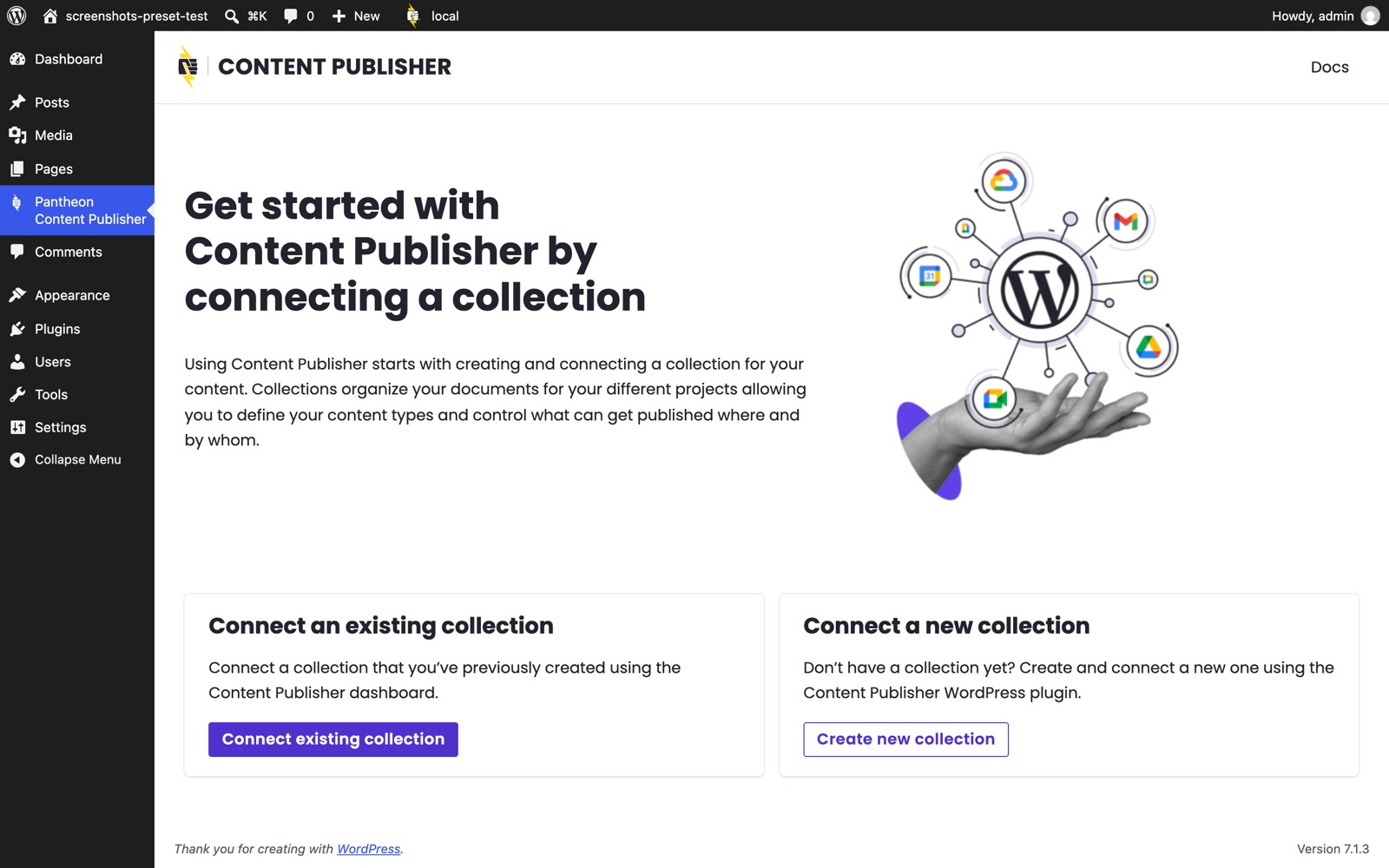
content-publisher: the plugin's start page, before a collection is connected.
| Plugin | Screen | Route | Where it renders |
|---|---|---|---|
| Pantheon Content Publisher | Content Publisher | /wp-admin/admin.php?page=pantheon-content-publisher | Any site |
| WP SAML Auth | Settings > WP SAML Auth | /wp-admin/options-general.php?page=wp-saml-auth-settings | Any site |
| WordPress Native PHP Sessions | Tools > Pantheon Sessions | /wp-admin/tools.php?page=pantheon-sessions | Any site |
| WP TLS Compatibility Checker | Tools > TLS Compatibility Checker | /wp-admin/tools.php?page=tls-compatibility-checker | Any site |
| Pantheon HUD | Admin bar menu | every admin page (#wp-admin-bar-pantheon-hud) | Any site; shows only “local” off Pantheon |
| Pantheon MU plugin | Settings > Pantheon Page Cache | /wp-admin/options-general.php?page=pantheon-cache | Pantheon only |
| Pantheon Advanced Page Cache | Clear cache admin bar item, max-age panel | admin bar, and the Pantheon Page Cache page | Pantheon only |
| Solr Power | Solr Power | /wp-admin/admin.php?page=solr-power | Pantheon only (needs a Solr index) |
| WP Redis | none (WP-CLI only) |
“Pantheon only” screens refused access or were missing on a local site. Capture them from a Pantheon Dev or Multidev environment: set "signIn": "chrome" in the config, open the site’s WordPress admin from the dashboard’s Site Admin button in the dedicated Chrome, and add the routes to a copy of the brief.
Pantheon Drupal modules
-
Add and enable the modules. With Composer and Drush in the site:
composer require drush/drush drupal/pantheon_content_publisher drupal/pantheon_secrets drupal/search_api_pantheon
vendor/bin/drush pm:install -y pantheon_content_publisher pantheon_secrets search_api_pantheon
TLS Checker and Pantheon Domain Masking are on GitHub, not Drupal.org: download their latest release into
web/modules/custom/(astls_checkerandpantheon_domain_masking) and enable them the same way. -
Capture with the
drupal-adminconfig andbriefs/pantheon-drupal-modules.json(7 of 7 captured on Drupal 11.4).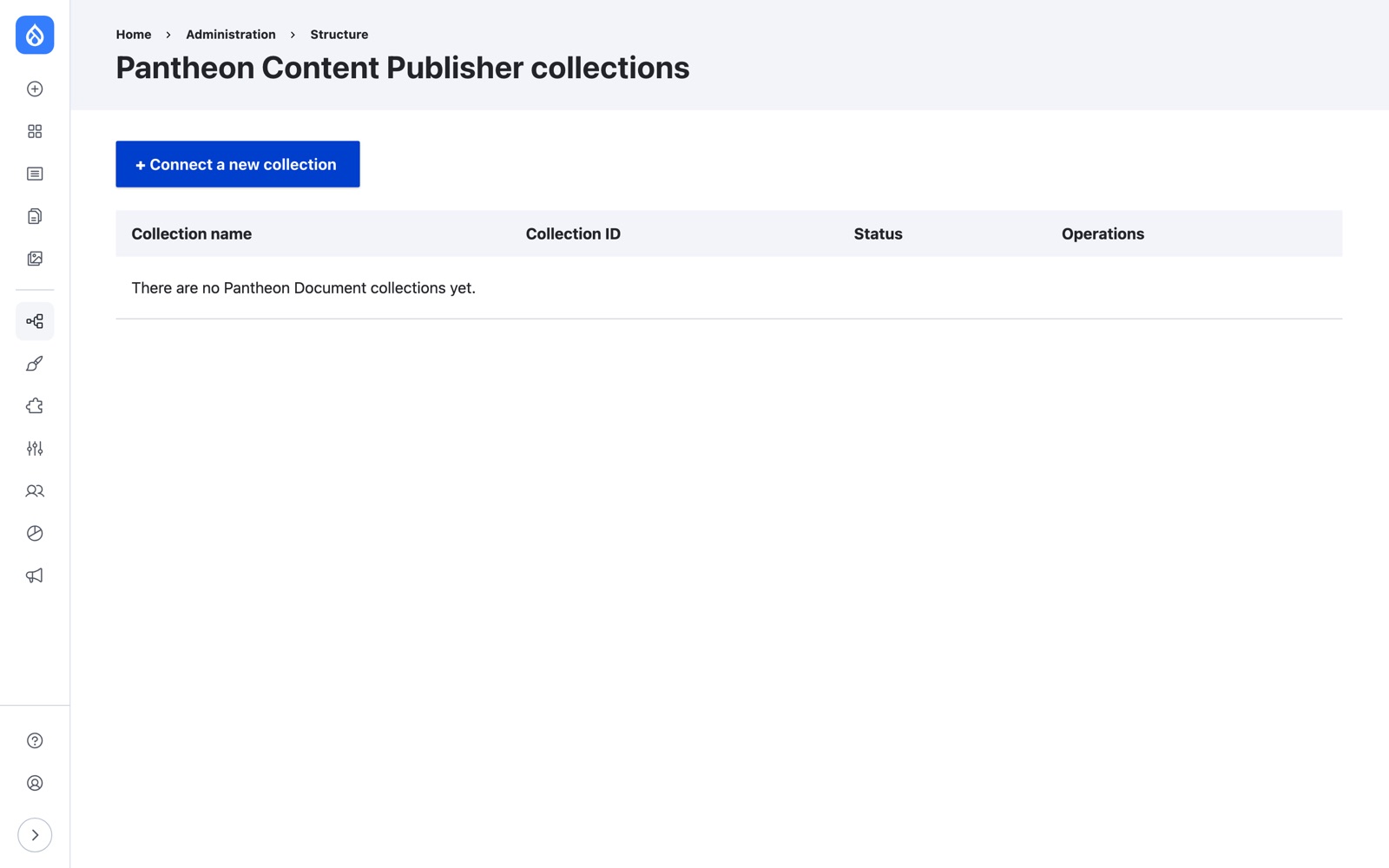
content-publisher-collections
| Module | Screen | Route |
|---|---|---|
| Pantheon Content Publisher | Collections | /admin/structure/pantheon-content-publisher-collection |
| Pantheon Content Publisher | Documents | /admin/content/pantheon-content-publisher |
| Pantheon Content Publisher | Smart components | /admin/structure/pantheon-smart-component |
| Pantheon Secrets | Sync all Pantheon Secrets | /admin/config/system/keys/pantheon |
| Search API Pantheon | Search API (the “Pantheon” server type) | /admin/config/search/search-api |
| Pantheon Domain Masking | Options | /admin/config/pantheon-domain-masking |
| TLS Checker | TLS Compatibility Checker | /admin/config/development/tls-checker |
| Pantheon Advanced Page Cache | none |
Content Publisher and the P1 dashboard
Content Publisher’s dashboard and P1’s dashboard are the same app at content.pantheon.io, so one preset covers both. Follow Capture WordPress, Drupal, and other apps: Content Publisher.
The Content Publisher docs show this dashboard with two older sidebars, and the P1 docs show a newer one (Overview, Sites, Content Publisher, Team), so the 32 Content Publisher dashboard images are likely out of date. That’s from comparing the docs’ images with each other; the live dashboard wasn’t compared.
The Pantheon dashboard
The dashboard is in 438 of the 1,003 image references on docs.pantheon.io, more than any other screen.
- Use a test workspace. Shots show workspace, site, and team names, so a production workspace would show customer data. Personal settings shots show your own name, email address, and SSH key fingerprints.
- Copy
examples/pantheon-dashboard.config.example.json. Setparams.workspaceIdfrom the dashboard’s URL (dashboard.pantheon.io/workspace/<workspaceId>/home) and, for site shots,params.siteIdfrom a site’s URL (…/cms-site/<siteId>/…). Pick a site that isn’t frozen: a frozen site’s pages redirect to a “frozen” notice.params.envpicks the environment (defaultdev). - Start the dedicated Chrome with
node scripts/chrome.mjs --config <file>and sign in through Pantheon’s single sign-on. -
Capture with
briefs/pantheon-dashboard.json:workspace-home OK sites OK team OK upstreams OK workspace-settings OK site-code OK site-database OK site-backups OK site-domains OK site-status OK personal-profile OK … personal-tokens OK Done: 16/16 captured, 0 failed, 0 with HTTP >= 400
| Screen | Route | Check |
|---|---|---|
| Workspace home | /workspace/<workspaceId>/home | global navigation, main h1 |
| Sites | /workspace/<workspaceId>/sites | main h1 contains “Sites” |
| Team | /workspace/<workspaceId>/team | main h1 contains “Workspace Team” |
| Upstreams | /workspace/<workspaceId>/upstreams | main h1 contains “Custom Upstreams” |
| Workspace settings | /workspace/<workspaceId>/settings/profile | main h1 contains “Workspace settings” |
| Environment: Code | /workspace/<workspaceId>/cms-site/<siteId>/environment/<env>/code | site and environment navigation, main h2 |
| Environment: Database & Files | …/environment/<env>/database/clone (also import, export, wipe) | main h2 contains “Clone database and files” |
| Environment: Backups | …/environment/<env>/backups/history (also schedule) | main h2 contains “Backup History” |
| Environment: Domains & HTTPS | …/environment/<env>/domains | main h2 contains “Domains & HTTPS” |
| Environment: Status | …/environment/<env>/status | main h2 contains “Status” |
| Personal settings | /workspace/<workspaceId>/personal-settings/<page>: profile, login-details, email-notifications, security, ssh-keys, personal-access-token | main h1 “User settings” and the page’s main h2 |
The other tabs follow the same pattern: merge, errors, security, newrelic, and, for Test and Live, deploys. Site-level pages are …/cms-site/<siteId>/settings/details and …/cms-site/<siteId>/workflows. Insights, Autopilot, Edge, Support, and Billing are under /workspace/<workspaceId>/.
The preset hides the maintenance and warning banners, toast notifications, and the support chat. It leaves in the “Upgrade to Next Generation GCDN” callout on site pages, which has no stable selector. The dashboard’s header offers “Try the new dashboard”; these routes and checks are for the current one, and a switch to the new one means checking them again.
The Google Docs add-on
Content Publisher’s Google Docs add-on is in 45 of the 149 images on docs.content.pantheon.io. It’s a Google Workspace add-on: it opens from its button in the side panel on the right of Docs, labeled “Pantheon”, not from the Extensions menu, whose Content Publisher entry only has Help.
- Use a test doc: shots show the doc’s content and your Google avatar. For the connect screen, use a doc that isn’t connected to a collection.
- Copy
examples/gdocs-addon.config.example.jsonand setparams.documentIdfrom the doc’s URL (docs.google.com/document/d/<documentId>/edit). - Start the dedicated Chrome and sign in to Google.
- Capture with
briefs/gdocs-addon.json.
The openAddon action presses the side panel button (or leaves it alone when the panel is already open), waits for the panel, and checks the panel’s text, for example “Connect this doc to a collection”. It clicks nothing inside the add-on, so nothing gets connected or published, and the panel closes when capture closes its tab. The button is a tab: it reports open with aria-selected, not aria-pressed.
After the doc is connected
briefs/gdocs-addon-connected.json captures six screens of a doc that’s connected to a collection:
| Shot | Screen | Where it renders |
|---|---|---|
addon-connected | Page metadata, components, formatting check, and the actions | The panel |
addon-about-collection | About this collection: name, URL, ID, and administrator tools | The panel |
addon-components | Components | The panel |
addon-formatting-check | Formatting check results | The panel, about 25 seconds later |
addon-preview-publish | Preview and publish | A window the add-on opens |
addon-edit-metadata | Edit metadata | content.pantheon.io, by its URL |
- Connect the test doc to a test collection whose site publishes nowhere, for example one whose URL is
https://example.com. The add-on’s collection list includes production collections, so check the name, URL, and ID on its confirmation screen before you press Connect to collection. -
Capture with
briefs/gdocs-addon-connected.jsonand the same config:addon-connected OK addon-about-collection OK addon-components OK addon-formatting-check OK addon-preview-publish OK addon-edit-metadata OK Done: 6/6 captured, 0 failed, 0 with HTTP >= 400
addonClick clicks a panel button by its text and waits for the panel’s text to change. addonWindow clicks a button that opens a window, takes the shot of that window, and closes it. Preview and publish only loads from the add-on: opened by its URL, it shows “Failed to load page”. It also shows “Checking content quality issues…” for a few seconds, so the shot waits until that’s gone. No shot clicks Publish, Save, or Disconnect collection, and a test in the suite fails if a brief tells an action to.
The formatting check’s results depend on the doc: the test doc shows “Unsupported Format (289)”.
The add-on draws its buttons as images. Connect to collection has the alt text “Connect to Site”, and other images have none, so a screen reader announces the wrong label or nothing. Capture doesn’t need these buttons, because the doc is connected beforehand, but that’s worth reporting to the Content Publisher team.
The Word add-in
Content Publisher’s Microsoft Word add-in is in 6 of the 149 images on docs.content.pantheon.io. It runs in Word for the web as a task pane, opened from its button on the Home tab.
- In the dedicated Chrome, sign in to Microsoft and create a test document with some text in it. On an empty document Word shows a “Draft with Copilot” prompt, which ends up in the shots.
- Add the add-in: Home > Add-ins, search for Pantheon Content Publisher, and add it. That accepts Microsoft’s and Pantheon’s terms, so it’s yours to do.
- Copy
examples/word-addin.config.example.jsonand setparams.documentUrlto the document’s full URL from the address bar. -
Capture with
briefs/word-addin.jsonfor a document that isn’t connected (the welcome screen), orbriefs/word-addin-connected.jsonfor one that is (home, metadata, and settings):word-addin-connected OK word-addin-metadata OK word-addin-settings OK Done: 3/3 captured, 0 failed, 0 with HTTP >= 400
The task pane is an iframe inside Word’s editor iframe, so the preset’s checks use a list of frames: ["iframe#WacFrame_Word_Inline", "iframe[title=\"Office Add-in Pantheon Content Publisher\"]"]. Word’s own panels, such as Navigation and the Copilot prompt, are inside Word’s frame and aren’t hidden.
Two differences from the Google Docs add-on:
- The Word add-in signs in to Content Publisher separately. Its collection list can differ from the Google Docs add-on’s: the test account saw only the playground, so the test document is connected to “Content Publisher playground”.
- Preview and Publish opens the same page as the Google Docs add-on,
content.pantheon.io/addon/articles/<id>/preview-publish, so the Google Docs shot (addon-preview-publish) covers it. Word only opens that window from a tab that’s in front; a capture step can do that with{ "bringToFront": true }, which takes the screen while the shot runs. For a document connected to the playground, the window’s requests return 403 and it shows “Loading…” without an error. A Word document needs a collection under a connected Microsoft account for the window to load.
Terminal output
34 images on docs.pantheon.io are terminal output, and the Content Publisher docs have 4 terminal screenshots. Use a code block instead: readers can copy it, screen readers can read it, and a release only changes text. The docs for this tool do the same.
Third-party screens
216 images on docs.pantheon.io show other companies’ screens (Google, GitHub, Cloudflare, New Relic, and more). Capture one with the public-site preset if it’s public, or with "signIn": "chrome" and your own sign-in if it isn’t. Their releases don’t come from Pantheon, so the watch doesn’t track them.